Wonderland Engine Integration
Cognitive3D integrates with Wonderland Engine through the @cognitive3d/analytics NPM package and its C3DWonderlandAdapter. The Wonderland integration supports the core WebXR SDK features — session management, automatic WebXR gaze tracking, custom events, sensors, exit polls, properties — plus geometry-only scene export.
Limitations
Dynamic objects, per-object heatmaps, and the built-in profiler are currently not supported. Scene export produces geometry only — materials and textures are not included. Support for these features may come at a later time.
Requirements
- Cognitive3D Account: You'll need an active Cognitive3D account to obtain your API keys and set up your project. You can sign up at the Cognitive3D platform website.
Note
You can quickly find your API keys on Cognitive3D with ctrl/cmd + K to pull up the search menu and then searching for Manage Developer Key. Note the difference between the Developer Key (Used for uploading assets to Cognitive3D) and the Application Key (Used in your Applications to allow your project to send data to our servers).
- Wonderland Engine project:
@wonderlandengine/api >= 1.0.0is the supported peer version.
Step 1: Install the Cognitive3D NPM Package
Open a terminal in your Wonderland Engine project root and run:
npm install @cognitive3d/analytics
Step 2: Create the Analytics Component
Add a new JavaScript file under js/ (e.g. js/c3d-analytics-component.js). The component owns the whole SDK lifecycle and exposes editor fields for your API key, scene data, and export options.
import { Component, Type } from "@wonderlandengine/api";
import C3D from "@cognitive3d/analytics";
import C3DWonderlandAdapter from "@cognitive3d/analytics/adapters/wonderland";

let c3d;

export class C3DAnalyticsComponent extends Component {
    static TypeName = "c3d-analytics-component";
    static Properties = {
        apiKey:           { type: Type.String, default: "YOUR_APPLICATION_API_KEY" },
        sceneName:        { type: Type.String, default: "MyWonderlandScene" },
        sceneId:          { type: Type.String, default: "YOUR_SCENE_ID" },
        versionNumber:    { type: Type.String, default: "1" },

        // Scene export options
        enableSceneExport: { type: Type.Bool,   default: true },
        exportScale:       { type: Type.String, default: "1.0" },
        exportRootObject:  { type: Type.Object },
    };

    adapter = null;

    start() {
        if (c3d) return;

        // 1. Initialize the SDK.
        c3d = new C3D({
            config: {
                APIKey: this.apiKey,
                allSceneData: [{
                    sceneName:     this.sceneName,
                    sceneId:       this.sceneId,
                    versionNumber: this.versionNumber,
                }],
            },
        });

        // 2. Initialize the Wonderland adapter. The engine instance is required.
        this.adapter = new C3DWonderlandAdapter(c3d, this.engine);

        // 3. Set the active scene and required properties.
        c3d.setScene(this.sceneName);
        c3d.setUserProperty("c3d.app.version", "1.0"); // REQUIRED

        // 4. Wire up session start/end.
        this.engine.onXRSessionStart.add(this.onXRSessionStart.bind(this));
        this.engine.onXRSessionEnd.add(this.onXRSessionEnd.bind(this));

        // 5. Wire up the scene export hotkey.
        this._setupSceneExportInput();
    }

    async onXRSessionStart(session) {
        const success = await c3d.startSession(session);
        if (success) console.log("Cognitive3D: session started");
    }

    onXRSessionEnd() {
        if (c3d) {
            c3d.endSession().then(status => {
                console.log("Cognitive3D: session ended with status", status);
            });
        }
    }

    _setupSceneExportInput() {
        if (!this.adapter) return;

        window.addEventListener("keyup", async (event) => {
            if (event.key.toUpperCase() !== "O") return;
            if (!this.enableSceneExport) {
                console.log("Cognitive3D: 'O' pressed but scene export is disabled.");
                return;
            }
            const scale = parseFloat(this.exportScale) || 1.0;
            await this.adapter.exportScene(this.sceneName, scale, this.exportRootObject);
        });

        console.log("Cognitive3D: scene export listener active (press 'O' in Live Preview).");
    }
}
The adapter automatically sets AppEngine = "Wonderland Engine" and AppEngineVersion to the current runtime version on the session's device properties.
Step 3: Register the Component
In your main js/index.js, import and register the component so it appears in the editor.
Inside the wle:auto-imports block:
import { C3DAnalyticsComponent } from "./c3d-analytics-component.js";
Inside the wle:auto-register block:
engine.registerComponent(C3DAnalyticsComponent);
Step 4: Add the Component to Your Scene
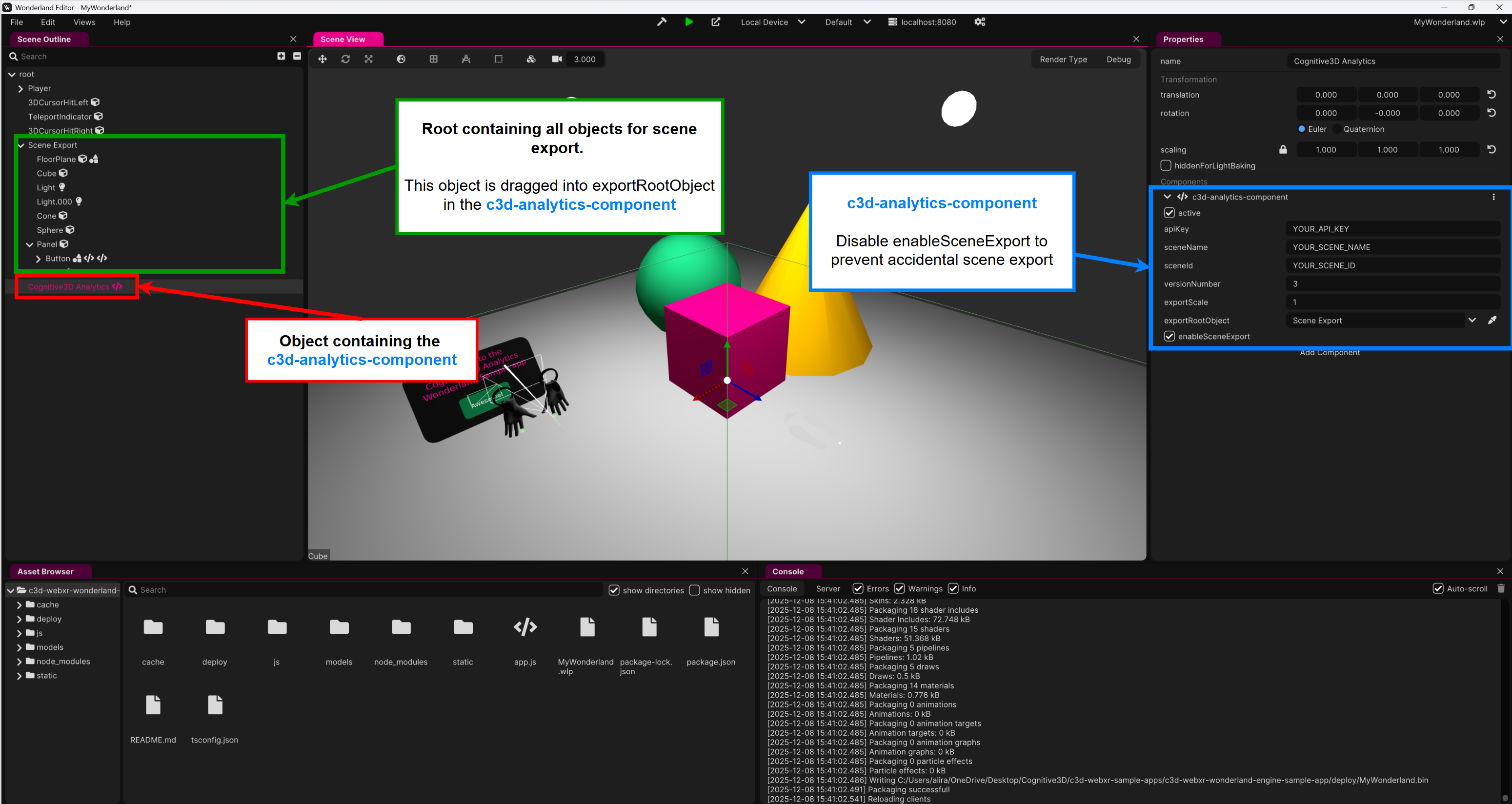
In the Wonderland Engine editor, create a new object (or select an existing one) and add the c3d-analytics-component. Fill in your Cognitive3D project information — API Key, Scene Name, Scene ID, Version Number — and choose an Export Root Object if you want to limit the scene export to a specific subtree.
Step 5: Exporting the Scene
The Wonderland adapter exports the running scene's geometry to the four files the Cognitive3D backend expects.
- Run the project in the browser (Live Preview).
- Ensure Enable Scene Export is checked on the component.
- Press
O. Your browser prompts you to pick a folder (must not be a system folder).
The adapter writes into a scene/ subfolder:
scene.gltf— JSON manifest referencing the binary data.scene.bin— merged vertex/normal/UV/index data, transformed into the dashboard's coordinate system.settings.json— containssceneName,scale, and the SDK version.screenshot.png— a frame captured from the WebGL canvas for the dashboard thumbnail.
Export options on the component:
- Enable Scene Export — master toggle for the
Ohotkey. - Export Scale — global scale applied to the exported geometry (default
1.00). - Export Root Object — optional. Restricts export to this object and its descendants. If empty, the whole scene is exported.
Warning
Disable Enable Scene Export (and save the scene) before shipping.
Export fidelity
The Wonderland exporter currently outputs geometry only — positions, normals, and UVs. Material definitions and textures are not included. You can preview the exported geometry with the glTF viewer.
Step 6: Uploading Data to Cognitive3D
Upload the four scene files using the Cognitive3D Upload Web App. This requires your Developer Key. After upload, the web app returns your Scene ID and version, for example:
✅ Scene uploaded successfully!
   Scene ID:      a1b2c3d4-e5f6-g7h8i9j0
   Version:       1
   Scene Name:    MyWonderlandScene
Step 7: Enter Your Cognitive3D Scene Data
Go back to the c3d-analytics-component in the Wonderland editor and paste the Scene ID (and confirm the Version Number) returned by the upload. Data sent from your app only maps onto the uploaded geometry when these match.
Step 8: Events and Sensors
With the SDK instance available in your component, you can record custom events and sensors anywhere in your game code. The cleanest pattern is to expose c3d through your component's public API or keep a module-scoped reference (as in the let c3d; example above) and import it where you need it.
// Custom event at a world-space position
c3d.customEvent.send("tutorial_step_completed", [0, 1, 0], { step: 3 });

// Sensor (number or boolean)
c3d.sensor.recordSensor("heartRate", 85);
See Custom Events and Sensors for details.
Step 9: Making Changes to Your Cognitive3D Project
When your scene evolves, re-export and re-upload via the Upload Web App. Update the Version Number on the c3d-analytics-component to the new version returned by the upload — the Scene ID stays the same.
Not Yet Supported
The following features are currently not available with the Wonderland adapter.
- Automatic Performance Sensors (profiler)
- Dynamic Objects (per-object heatmaps, transform tracking, engagement events)
- Scene export includes materials and textures (geometry-only)
The WebXR SDK is actively being developed. Support for these features may arrive in a later release.
 If you have a question or any feedback about our documentation please use the Intercom button (purple circle) in the lower right corner of any web page or join our Discord.