Embeddable Session Replay for partners
Embeddable Session Replay puts a light version of Session Replay inside your own website or dashboard, so your customers can review participant sessions captured by Cognitive3D without a Cognitive3D account or login. Your backend mints a short-lived token scoped to a single participant, so each of your customers sees only the sessions you scope to them.
This is an early release. To request access, contact us with the Intercom button (purple circle) below.
Embeddable Session Replay proof-of-concept
The screenshot below shows Embeddable Session Replay running inside a partner's own analytics dashboard.
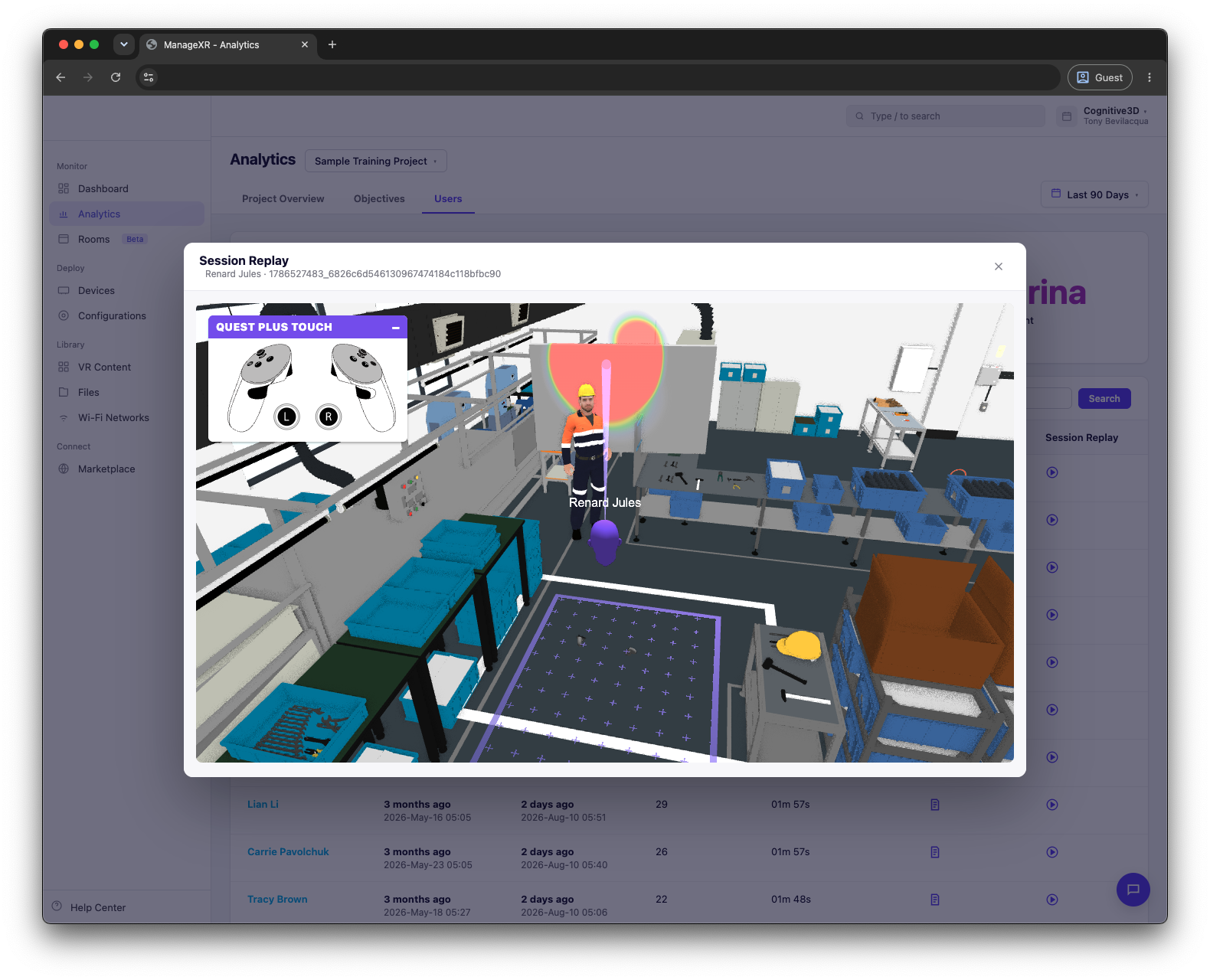
The viewer renders in an iframe alongside the partner's own navigation and participant list. The controller overlay, play space boundary, and gaze cone come from the embed, not from the host page.
Authentication architecture
Embeddable Session Replay requires an Organization on the Cognitive3D platform with at least one Project. With the Project, Scene, and Session identifiers from the platform, you can embed the viewer on your own website using an iframe.
The diagram below shows how a credential travels from your backend to the embedded viewer.
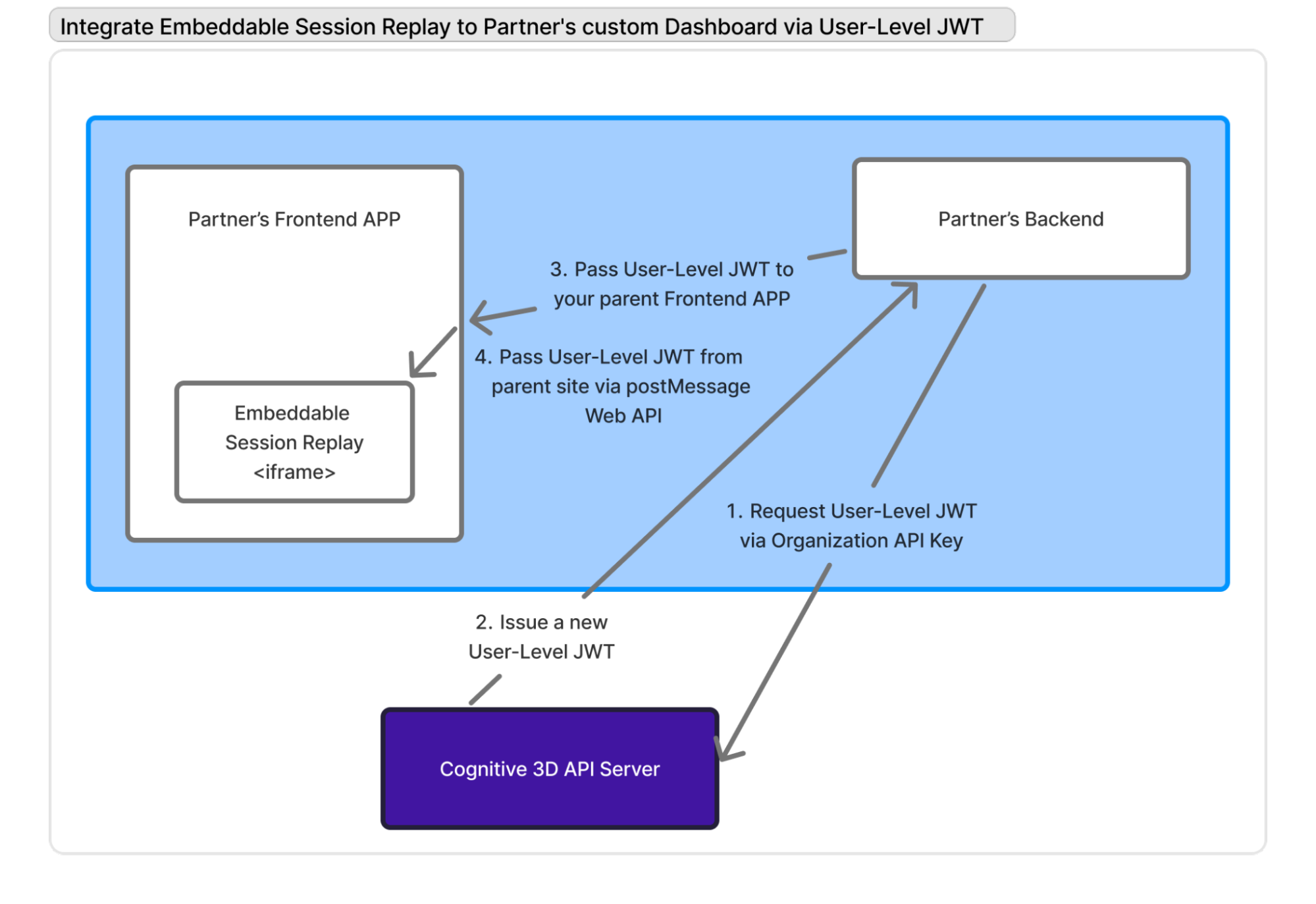
Your backend holds the organization API key and exchanges it for a short-lived token scoped to one participant. That token is the only credential that reaches the browser.
Token types
The platform provides two token types with different permission scopes.
| Token | Scope | Where it lives |
|---|---|---|
| Organization API key | Read and write across every project in the organization. | Your backend only. |
| User-level JWT | Read access to a single project, scoped to one participant. | Your frontend and the embed. |
Scoping tokens this way lets you manage and secure access for your own customers, and prevents one customer from viewing another customer's sessions. To integrate, you use the organization API key to generate a user-level JWT.
Warning
Never ship the organization API key to a browser. It grants read and write access to every project in your organization.
1. Request a user-level JWT with the organization API key
Your backend calls the Cognitive3D API to mint a scoped access token, authenticating with the organization API key. Scope the request to a participant ID and a project ID. The organization API key never leaves your backend and is never exposed to the browser.
2. Cognitive3D issues a user-level JWT
The Cognitive3D API signs and returns a short-lived JWT scoped to that single participant. The token authorizes exactly what the embedded viewer needs and nothing more: project and objective metadata such as names and labels, scene and object meshes, and session data for the scoped participant including objective results.
The token carries its own expiry, so both your app and the embed can tell when it lapses. There is no per-token revocation list. In an emergency, Cognitive3D rotates the signing key.
3. Pass the JWT to your frontend
Your backend hands the token to your own frontend as part of rendering the page for that customer, typically alongside the rest of that customer's page payload. Because the token is already scoped to one participant, the frontend cannot widen its reach: each customer reaches only the participant you scoped the token to, with no client-side permission logic to get wrong. Feature-level gating per customer is not part of this release, so all embeds unlock the same capability set.
4. Pass the JWT to the iframe with postMessage
The parent page delivers the token to the Session Replay iframe over the postMessage Web API rather than in the iframe src. This keeps the credential out of the URL, out of browser history, and out of referrer headers and server logs. The embed holds its requests until the token arrives, then boots and authenticates its API calls with it.
When the token nears or reaches expiry, the embed signals the parent frontend, which requests a fresh token through steps 1 to 3 and posts it back in. Replay continues without a reload.
Integration steps
Generate an organization API key
Create a read-write organization API key on the Cognitive3D Dashboard. Your backend uses this key to mint user-level JWTs.
-
Open the account menu in the top right of the Dashboard and select Organization Settings.
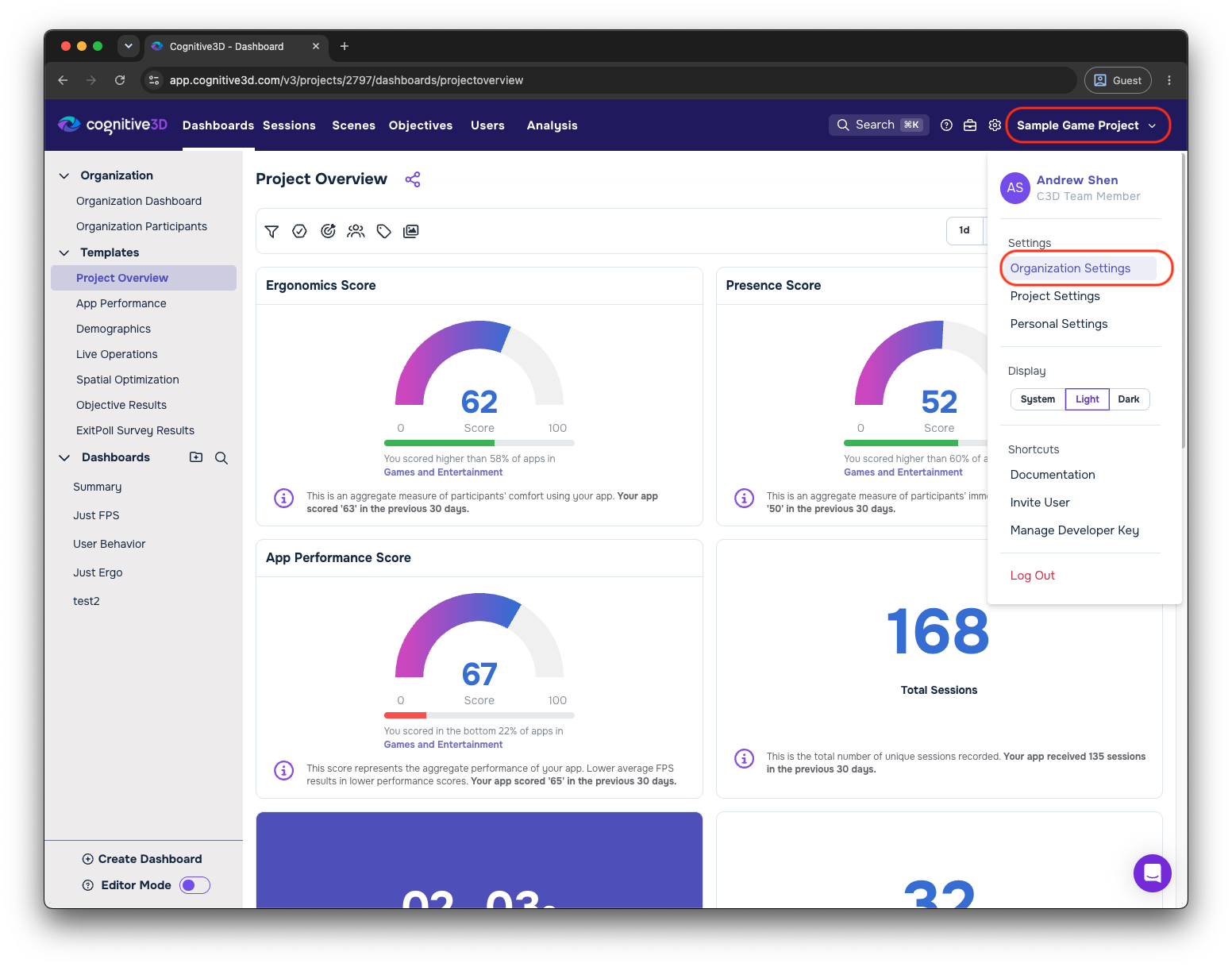
The same menu holds Project Settings and Manage Developer Key. You need the organization scope, not the project scope.
-
Select Manage API Keys in the left sidebar. Press Create API Key.
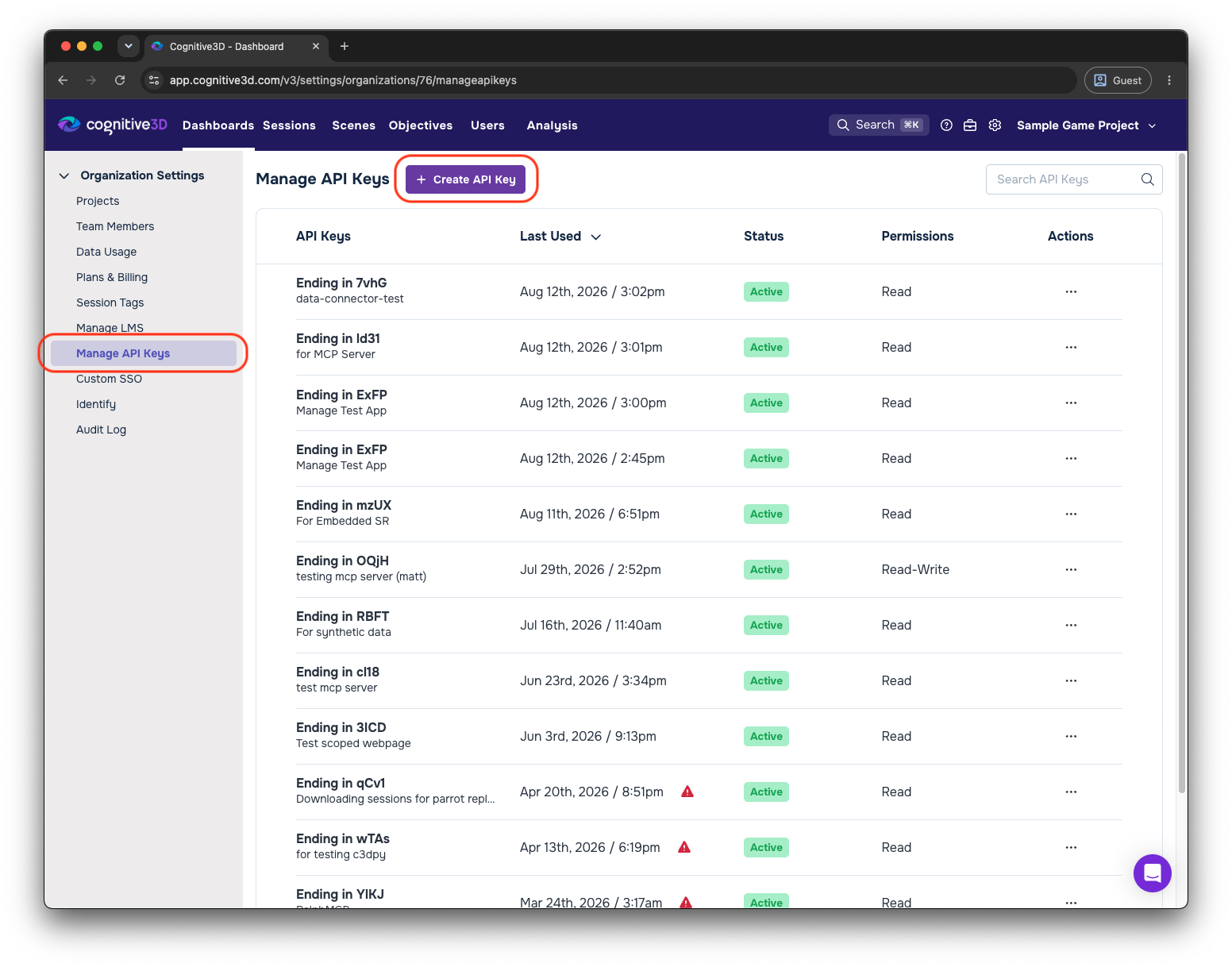
The list shows each existing key by its last four characters, when it was last used, its status, and its permission level.
-
Enter a description. Set Permissions to Read-Write. Press Generate API Key.
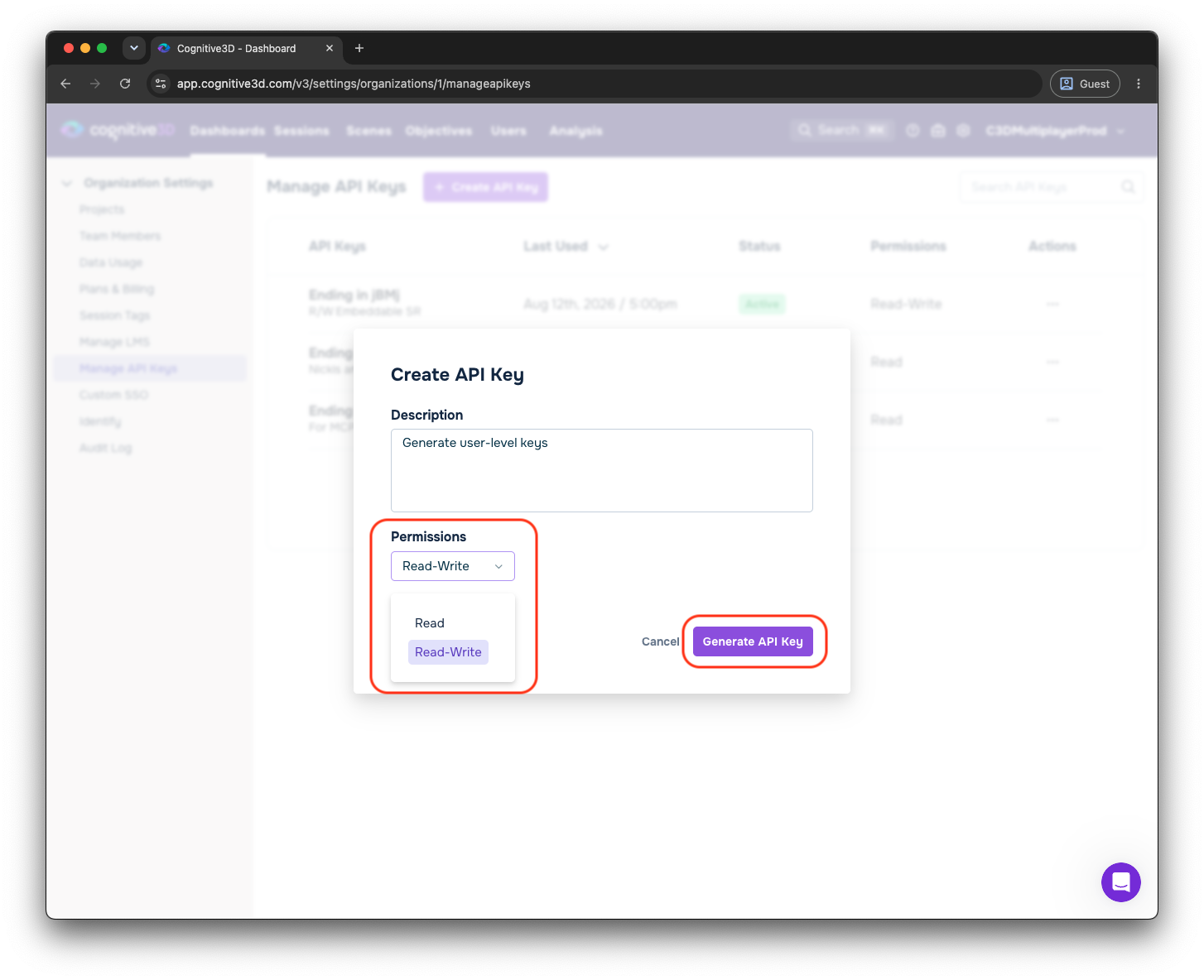
Read-Write is required. A read-only key cannot mint user-level JWTs.
-
Copy the key and store it somewhere safe.
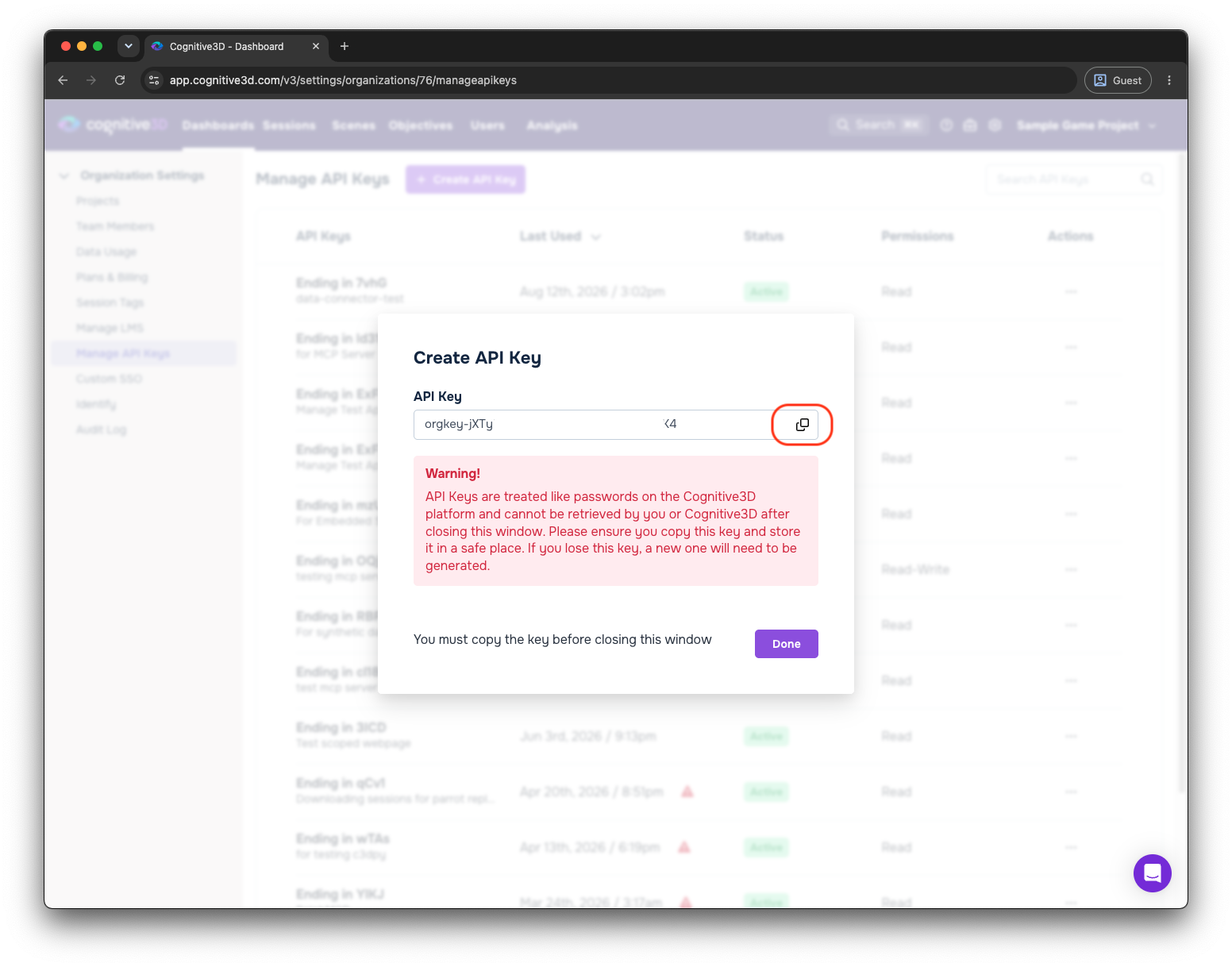
Cognitive3D shows the key once and cannot retrieve it after you close the dialog. If you lose it, generate a new one.
Generate a user-level JWT
Your backend exchanges the organization API key for a participant-scoped JWT. Send a POST request to the srEmbedTokens endpoint for your project:
https://api.cognitive3d.com/v0/projects/YOUR_PROJECT_ID/srEmbedTokens
The request body names the participant the token is scoped to. expireInMinutes is optional and defaults to 360 minutes, with a maximum of 720 minutes:
{
  "participantId": "YOUR_PARTICIPANT_ID",
  "expireInMinutes": 720
}
Pass the organization API key in the Authorization header. This example mints a 12-hour token for project 5065:
curl -i --location 'https://api.cognitive3d.com/v0/projects/5065/srEmbedTokens' \
  --header 'Authorization: YOUR_ORGANIZATION_API_KEY' \
  --header 'Content-Type: application/json' \
  --data '{"participantId": "YOUR_PARTICIPANT_ID", "expireInMinutes": 720}'
The response returns the token and its expiry as a Unix timestamp in milliseconds:
{
  "token": "YOUR_USER_LEVEL_JWT",
  "expiresAt": 1786611603826
}
Decoding the token shows the claims that bound it. The viewer refuses anything outside these scene IDs, version IDs, and project ID:
{
  "organizationId": 1,
  "participantId": "123456789012345678",
  "versionIds": [
    1234,
    1235,
    1236
  ],
  "sceneIds": [
    "p0123-hsajdf83-hshdjkf9-sdfasdfsaf-sfdsdfs",
    "p0123-sadfsfsf-dfdgdfgsdf-dsfgdsgdfg-dfgdf",
    "p0123-asdfsdff-sdfsdfsdf-sdfsdfsdfsdd-sfdd"
  ],
  "exp": 1786586702,
  "projectId": 0123,
  "iat": 1786565102
}
Note
This release does not cover multiplayer sessions. A participant-scoped token reaches one participant's sessions only.
Pick the target session
To set up Embeddable Session Replay on your own website you need five pieces of data: Project ID, Scene ID, Scene Version Number, Session ID, and the user-level JWT from the previous step. The fastest way to collect them is to start from a session you already have open.
Open the session in Session Replay on the Dashboard. Select Advanced in the top bar. Press Open in Embed under Developer. This carries the Project ID, Scene ID, Scene Version Number, and Session ID into the Embed Configurator for you.
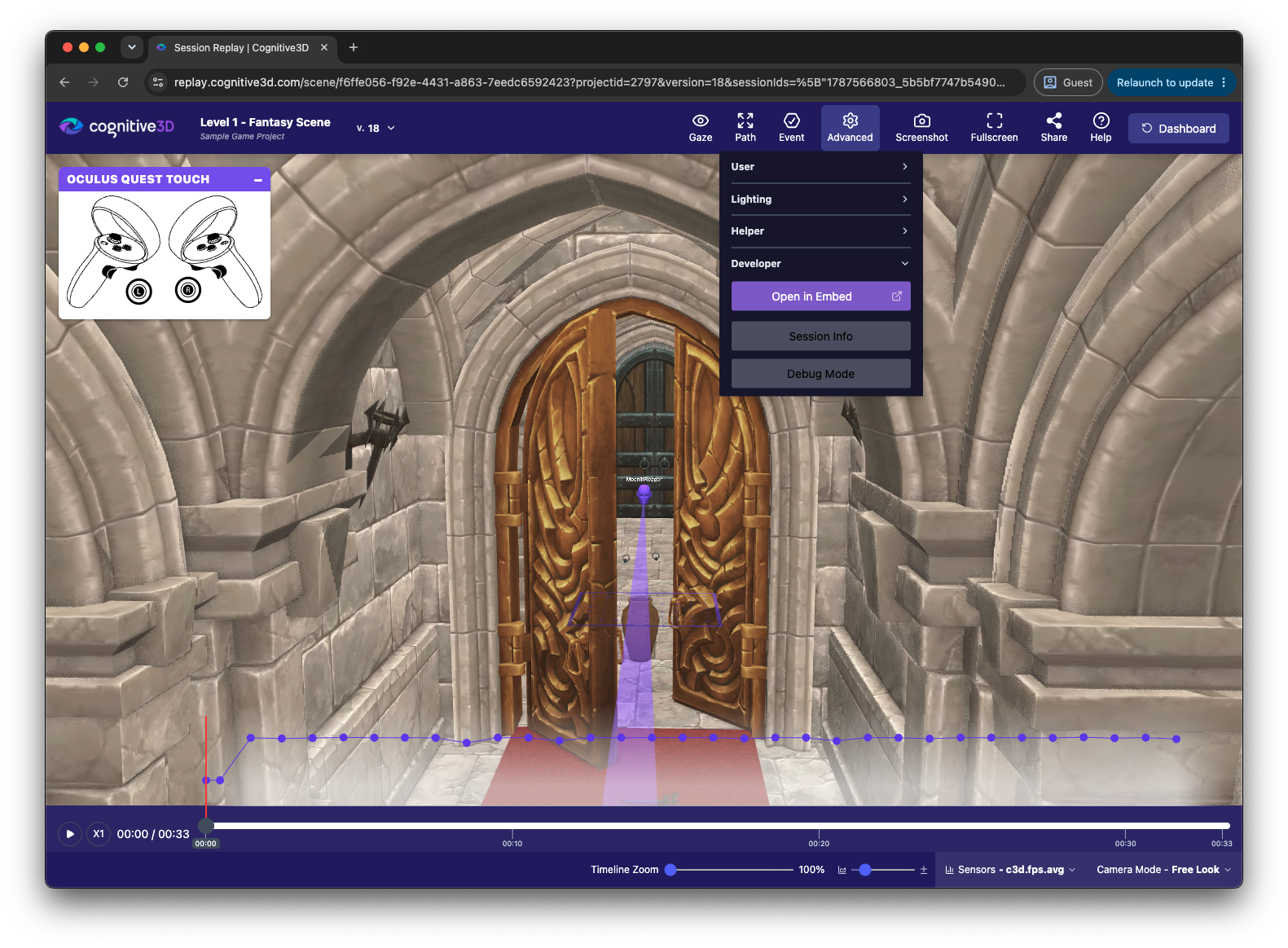
If you do not have the session open already, select it manually in the Embed Configurator instead.
Select a session in the Embed Configurator
Open the Embed Configurator to pick a session and preview the embed before you paste any code.
-
Enter your organization API key under Authentication, then press Verify Write Permission.
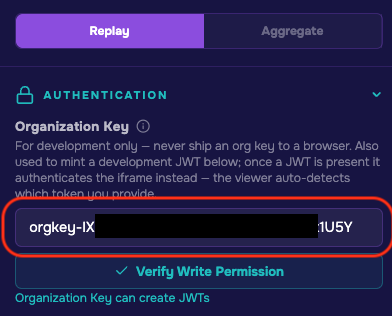
The configurator needs a write-permission key because it mints the JWT for you. In production, the key stays on your backend.
-
Select your Project, Scene, and Scene Version from the dropdown lists.
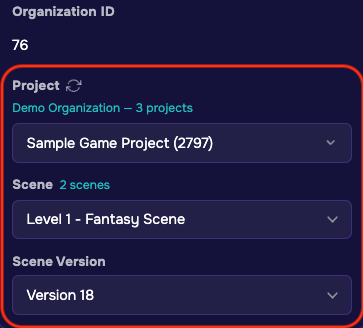
The Organization ID above the dropdowns confirms which organization the key belongs to.
-
Choose the Session Type, then pick the session you want to replay. A scene session targets a single scene, while a project session spans scene visits across a project.
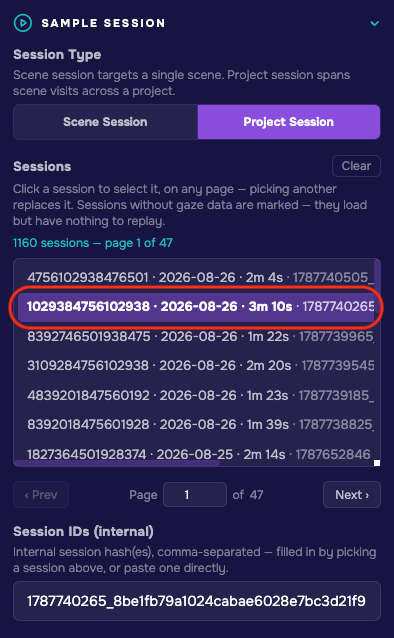
Picking a session fills in the internal session hash under Session IDs. You can also paste a hash directly.
-
Change the rendering and camera settings to match your scenario.
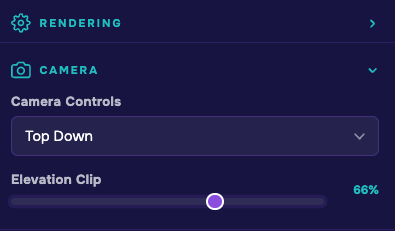
Camera Controls maps to
controlTypeand Elevation Clip maps toverticalSliceAmountin the generated config. -
Scroll to the bottom and press Reload Preview to confirm the embed works in the preview pane on the right.
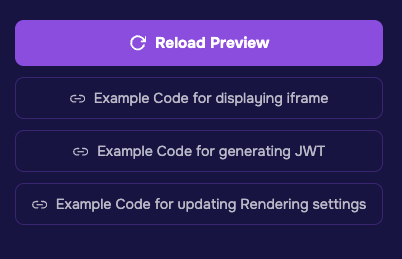
The three example code buttons generate an iframe snippet, a JWT snippet, and a rendering settings snippet. The generated code stays in sync with the rendering and camera settings you chose.
Embed Session Replay
- Paste the iframe example code into your frontend's HTML.
- Follow the instructions in the Example Code for generating JWT modal to wire up the token refresh flow. Paste the result into your JavaScript.
- Follow the instructions in the Example Code for updating Rendering settings modal to change the embed's display from your own dashboard at runtime.
- Open your website in a browser to confirm the embed loads and plays.
URL query parameters
The URL drives the viewer entirely. The path selects what to replay, and a single percent-encoded config JSON object carries authentication plus every render, camera, path, and aggregation setting. After load, the host page keeps talking to the viewer through postMessage, so settings, room data, and timeline position stay controllable at runtime.
The scene form targets one scene, and the project form spans scene visits across a project:
https://replay.cognitive3d.com/scene/{sceneId}?apiTokenMode=true&projectid={projectId}&version={version}&sessionIds={json}&sessionId={numeric}&config={json}

https://replay.cognitive3d.com/project/{projectId}?apiTokenMode=true&sessionIds={json}&config={json}
Three rules apply to every URL:
sessionIdsandconfigare JSON. Always run them throughencodeURIComponentrather than hand-substituting%7Band%22.apiKeyis not a top-level query parameter. It lives insideconfig.- Query keys are case-sensitive exactly as written below.
Top-level query parameters
| Field | Type | Default | Definition |
|---|---|---|---|
projectId |
numeric string | -1 (falls back to the scene's project) |
Numeric Cognitive3D project ID. Required in the scene form. In the project form it comes from the path instead. |
version |
integer string | -1 |
Scene version number, the human-facing v17. Ignored in project mode, where visits carry their own versions. |
versionId |
integer string | -1 |
Internal scene version ID, a database ID rather than the version number. Scene Viewer links use this. When present it wins over the session's own version. |
sceneId |
UUID string | from path | Overrides the scene UUID taken from /scene/{sceneId}. |
sessionIds |
URL-encoded JSON array of strings | [] |
Internal session hash IDs to load, for example ["1775515259_5b5bf774..."]. Multiple IDs load a multi-session replay. Read once at page load. Later selection changes rewrite the URL but do not re-seed from it. |
selectedSessionId |
string | none | The viewer writes this when more than one session is active, so a shared link reopens with the same session focused. Removed automatically when only one session is active. |
sessionId |
numeric string | -1 |
Numeric session ID used to deep-link the player for audio, transcript, and project-visit lookups. Not consumed in project mode. |
config |
URL-encoded JSON object | {} |
The viewer configuration override, deep-merged over the app defaults. Carries apiKey and every setting below. Invalid JSON is ignored with a console warning. |
apiTokenMode |
true or false |
false |
Token-authenticated embed mode. The Embed Configurator always sets true. In this mode the viewer skips the CSRF and cookie login path, gates rendering on a token being present, and asks the parent for one with tokenRequired when the URL carries none. |
mode |
sessionReplay, sceneViewer, objectExplorer, or appWidget |
sessionReplay, or sceneViewer on /viewer/model |
Viewer mode. Each mode picks its own default camera control and aggregation type. |
debug |
true or false |
false |
Enables the Tweakpane debug UI. |
The config object
The config object is deep-merged over the viewer's defaults, so include only what you want to change. The Embed Configurator omits every field that already matches the default.
| Field | Type | Default | Definition |
|---|---|---|---|
apiKey |
string | "" |
The credential the viewer authenticates with: a user-level embed JWT sent as the c3d-sr-embed-token header, or an organization API key sent as Authorization. A JWT scopes access by its sceneIds, versionIds, and projectId claims, and anything outside those claims is refused. |
controlType |
freeLook, thirdPerson, firstPerson, orbit, topdown, or fps |
freeLook in Session Replay |
Camera mode. freeLook orbits freely and frames the participant, thirdPerson follows behind the HMD, firstPerson rides the HMD, and orbit, topdown, and fps are the static-scene controls. |
verticalSliceAmount |
number 0 to 1 | 1 |
Elevation clip. 1 shows the whole scene. Lower values clip geometry above a Y plane so you can see into a building from above. |
cameraSpeed |
number in meters per second | 2 |
Scales camera zoom, pan, and keyboard movement. |
renderConfig |
object | see below | Render and UI toggles. |
pointCloudConfig |
object | see below | Cube point-cloud aggregation appearance. |
heatmapConfig |
object | see below | Aggregated heatmap appearance. |
slicerQueryData |
object | undefined |
Pre-computed aggregation payload, { main: { bin_size, session_count, counts[] } }, injected directly instead of querying the API. |
sceneConfig |
object | see below | scale, sceneName, sdkVersion, cameraPos, and cameraRot. The viewer mostly writes these back. |
Render configuration
renderConfig controls what the viewer draws and which parts of its own UI appear.
| Field | Type | Default | Definition |
|---|---|---|---|
ui |
boolean | true |
Show the player UI: timeline, header, and settings. Set false for a bare canvas. |
autoplay |
boolean | false |
Start playback on load. With audio present, the browser may require a consent click first. Project mode defers autoplay to the audio path. |
loopSession |
boolean | true |
Restart from the beginning when the timeline ends. |
darkMode |
boolean | false |
Dark background for the 3D scene itself. |
darkModeForWidgets |
boolean | false |
Dark theme for the surrounding UI chrome. Sets data-theme on the document. |
gridEnabled |
boolean | false |
Floor grid. |
axesHelperEnabled |
boolean | false |
Debug XYZ axes at the origin. |
boundingBoxEnabled |
boolean | false |
Debug bounding boxes around scene geometry and Dynamic Objects. |
boundaryEnabled |
boolean | true |
VR play space boundary polygon. |
legendEnabled |
boolean | true |
Color-map legend for the active aggregation display. |
eventToastEnabled |
boolean | false |
Toast popups when session events fire during playback. |
controllerModalEnabled |
boolean | true |
Controller-button overlay showing which inputs are pressed. |
fullscreenButtonEnabled |
boolean | false in Session Replay |
Floating fullscreen button, for embeds running with ui: false. |
fullscreen |
boolean | false |
Enter or exit fullscreen. Intended to be toggled at runtime with postMessage. |
sceneVersionEnabled |
boolean | true |
Show the Scene Version label. |
pathVisible |
boolean | false |
Master toggle for the movement path overlay. pathType and pathSize do nothing while this is false. |
pathType |
head or floor |
head |
Draw the HMD trajectory or its floor projection. |
pathSize |
number 0 to 1 | 0.1 |
Path line weight. The configurator's slider shows a percentage and stores the value divided by 100. |
cloudPointsEnabled |
boolean | true |
Render the cube point-cloud aggregation. |
cloudPointsSize |
number 0 to 10 | 1 in Session Replay, 25 in Object Explorer |
Point-cloud cube size. |
pointsAlwaysOnTop |
boolean | false |
Draw aggregation points over scene geometry. The app widget uses this. |
heatmapEnabled |
boolean | false |
Render the aggregated heatmap volume instead of cubes. |
ssaoEnabled |
boolean | true |
Screen-space ambient occlusion post-process, labeled Ambient Occlusion in the UI. |
ssaoRadius and ssaoStrength |
number | 0.1 and 0.5 |
SSAO sampling radius in view-space units, and darkening strength. |
sobelEnabled and sobelIntensity |
boolean and number | false and 1.0 |
Sobel edge-darkening post-process and its multiplier. |
sceneVisible |
boolean | true |
Hide the scene mesh while keeping session data visible. |
distanceCulling |
{ enabled, maxDistance } |
{ true, 300 } |
Skip geometry beyond maxDistance meters from the camera. |
maxFPS |
number | 120 |
Frame-rate cap. |
resolutionFactor |
number | 1 |
Render-scale multiplier. Below 1 trades sharpness for performance. |
sliceClipY |
number | computed | Absolute Y clip plane derived from verticalSliceAmount. Set the percentage instead. |
runQueryTimestamp |
number | undefined |
Bump to a fresh Date.now() to force the aggregation query to re-run on the next config update. |
Point cloud and heatmap appearance
pointCloudConfig and heatmapConfig share the same shape. Two fields apply to the point cloud only.
| Field | Type | Default | Definition |
|---|---|---|---|
colorMap |
default, inferno, jet, plasma, viridis, magma, cividis, or turbo |
default |
Color palette used for density. |
normalizationMethod |
minmax, percentile, logPercentile, log, or cdf |
minmax |
How raw counts map into the 0 to 1 color range. The percentile modes are the ones that read percentileParams. |
gammaCorrection |
number 0 to 1 | 0.55 |
Intensity gamma. Higher values brighten low-density areas. |
percentileParams.min and .max |
number 0 to 1 | 0.01 and 0.99 for the point cloud, 0 and 0.99 for the heatmap |
Lower and upper percentile clamps applied before normalization. |
defaultPointSize |
number | 2 in Session Replay |
Minimum point size used as the normalization floor. |
blendMode |
1 blend, 2 additive, or 3 opaque |
1 |
Point-cloud blending. Point cloud only. |
tint |
[r, g, b] |
[1, 1, 1] |
Color multiplier. Point cloud only. |
active and enabled |
boolean | true and false |
Whether the point cloud or heatmap subsystem is live. |
Configuration example
This configuration hides the UI, starts playback on load, uses the third-person camera, and draws the head path at 25 percent weight:
{
  "apiKey": "YOUR_USER_LEVEL_JWT",
  "controlType": "thirdPerson",
  "renderConfig": {
    "ui": false,
    "autoplay": true,
    "pathVisible": true,
    "pathType": "head",
    "pathSize": 0.25
  }
}
Runtime postMessage API
Once the embed is running, the parent page and the iframe exchange messages over the postMessage Web API. Always post to the viewer's exact origin, never '*', and check both event.source and event.origin on every message you receive.
Messages from the parent page to the iframe
| Message | Effect |
|---|---|
{ config: {…} } |
Apply a viewer config, using the same shape as the URL config. A message whose only key is apiKey is treated as a pure token update and merges into the current config instead of replacing it. |
{ roomData: {…} } |
Load MR Room Layout anchors: { roomManifest: [{ id, label, anchors: [{ id, label, shape: "plane" or "volume" }] }], roomData: [{ id, time, enabled, p:[x,y,z], r:[x,y,z,w], s:[…] }] }. Send { roomData: null } to clear. |
{ jumpToTimestamp: 12345 } |
Scrub playback to that timeline position, in milliseconds. |
Messages from the iframe to the parent page
| Message | Meaning |
|---|---|
{ iframeReady: true } |
The viewer is initialized and accepting config messages. |
{ clientConfig: {…} } |
The resolved config after init, echoing back defaults the parent did not set. |
{ eventList: [{ name, time, uid }], sensorList: [{ name, category, label }] } |
Sent once the session's events, and sensors if any, are loaded. Use it to build your own timeline or event menu. |
{ tokenRequired: true } |
apiTokenMode is on and no credential arrived in the URL. Push one now, because boot is blocked until you do. |
{ tokenRefreshRequired: true, status: 401 } |
The token expired or was rejected. Mint a fresh one and push it. The viewer holds requests briefly and ignores the rejected token. |
{ roomError: "…" } |
The room payload was rejected, with the reason. |
{ viewerError: { error } } |
Initialization failed. |
Handling token initialization and refresh
This snippet boots the iframe, answers the tokenRequired handshake, and logs a tokenRefreshRequired prompt. In production, replace the hard-coded values with a token your backend mints per customer at runtime, and with the embed URL from the Embed Configurator:
(() => {
  // In production, set the JWT from your parent app's own API response: your
  // backend mints a short-lived, per-customer token and hands it to the page at
  // runtime. A token hard-coded into page source is served to every visitor.
  const JWT = 'YOUR_USER_LEVEL_JWT';
  const EMBED_URL = 'YOUR_EMBED_URL';

  const u = new URL(EMBED_URL, location.href);
  u.searchParams.set('apiTokenMode', 'true');
  const cfg = u.searchParams.get('config') ? JSON.parse(u.searchParams.get('config')) : {};
  delete cfg.apiKey;                                    // token stays in memory
  u.searchParams.set('config', JSON.stringify(cfg));
  const origin = u.origin;                              // the viewer's exact origin

  const existing = [...document.querySelectorAll('iframe')].find((f) => /replay|cognitive3d/i.test(f.src || ''));
  const frame = existing ?? Object.assign(document.body.appendChild(document.createElement('iframe')), {
    style: 'position:fixed;inset:0;width:100vw;height:100vh;border:0;z-index:2147483647;background:#000',
  });

  let current = null;

  // Never logs the token itself.
  const push = (t = JWT) => {
    const jwt = String(t || '').trim();
    if (!jwt) return console.error('[SR] no token to push');
    if (jwt === current) console.warn('[SR] same token re-pushed, the viewer ignores this while a refresh is pending');
    frame.contentWindow.postMessage({ config: { apiKey: jwt } }, origin);
    current = jwt;
    console.log('[SR] -> { config: { apiKey } }');
  };

  const onMessage = (e) => {
    if (e.source !== frame.contentWindow || e.origin !== origin) return;   // both checks required
    const d = e.data;
    if (!d || typeof d !== 'object') return;
    if ('tokenRequired' in d) { console.log('[SR] <- tokenRequired'); push(); }
    else if ('iframeReady' in d) { console.log('[SR] <- iframeReady'); if (!current) push(); }
    else if ('tokenRefreshRequired' in d) {
      // The token expired. Request a fresh one from your backend and push it.
      // The viewer holds its requests for 30 seconds and ignores the rejected token.
      console.warn('[SR] <- tokenRefreshRequired', d.status, 'mint a new token and call SR.push(freshJwt)');
    }
    else if ('clientConfig' in d) console.log('[SR] <- clientConfig versionId=', d.clientConfig?.versionId);
    else if ('viewerError' in d) console.error('[SR] <- viewerError', d.viewerError?.error);
  };
  window.removeEventListener('message', window.__srOnMessage);
  window.addEventListener('message', (window.__srOnMessage = onMessage));

  const reload = () => {
    current = null;
    const s = u.toString();
    frame.src = 'about:blank';
    requestAnimationFrame(() => (frame.src = s));
  };
  window.SR = { push, reload, frame, url: u.toString() };   // debug handle, drop in production
  console.log('[SR] ready, waiting for tokenRequired. SR.push(freshJwt) / SR.reload()');
  reload();
})();
Updating rendering settings at runtime
The viewer applies each { config } message as a full replacement rather than a merge, so the parent page must keep a live copy of the config and repost the complete object with only the fields it is changing. This snippet keeps that copy in sync from the viewer's own clientConfig messages and exposes three helpers:
(() => {
  // Keep your own copy of the config in sync rather than baking a literal in
  // at generation time. The same caveat applies to the credential below as to
  // the hard-coded token in the previous snippet.
  let currentConfig = {
    graphicsAPI: 'webgl',
    viewerMode: 'sessionReplay',
    controlType: 'thirdPerson',
    controlSettings: {
      topdown: { moveSpeed: 0.5, zoomSpeed: 1.1, dragSpeed: 1, blockX: false, blockZ: false },
      fps: { moveSpeed: 0.1, lookSpeed: 0.002 },
      orbit: { rotationSpeed: 0.005, zoomSpeed: 0.5, panSpeedMultiplier: 0.001, minRadius: 0.001, maxRadius: 1000 },
    },
    apiKey: 'YOUR_USER_LEVEL_JWT',
    renderConfig: {
      ui: true,
      autoplay: true,
      loopSession: true,
      distanceCulling: { enabled: true, maxDistance: 300 },
      maxFPS: 120,
      resolutionFactor: 1,
      darkMode: false,
      darkModeForWidgets: true,
      sceneVisible: true,
      cloudPointsEnabled: true,
      heatmapEnabled: false,
      legendEnabled: true,
      boundingBoxEnabled: false,
      eventToastEnabled: true,
      boundaryEnabled: true,
      controllerModalEnabled: true,
      fullscreenButtonEnabled: false,
      pathVisible: false,
      pathType: 'head',
      pathSize: 0.1,
      axesHelperEnabled: false,
      gridEnabled: false,
      ssaoEnabled: true,
      elevationScaleEnabled: true,
      cloudPointsSize: 1,
      pointsAlwaysOnTop: false,
    },
    dynamicObjects: [],
    pointCloudConfig: {
      percentileParams: { min: 0, max: 0.99 },
      gammaCorrection: 0.4,
      defaultPointSize: 2,
      colorMap: 'default',
      blendMode: 1,
      tint: [1, 1, 1],
      active: true,
      normalizationMethod: 'minmax',
    },
    heatmapConfig: {
      colorMap: 'default',
      enabled: false,
      normalizationMethod: 'minmax',
      percentileParams: { min: 0, max: 0.99 },
      gammaCorrection: 0.4,
    },
    captureScreen: { enabled: false },
    sceneConfig: { scale: 1, sceneName: '', sdkVersion: '', cameraPos: [] },
    verticalSliceAmount: 1,
    iframeReady: true,
  };

  const frame = [...document.querySelectorAll('iframe')].find((f) => /replay|cognitive3d/i.test(f.src || ''));
  if (!frame) console.error('[SR] no Session Replay iframe found on this page');
  const origin = frame ? new URL(frame.src, location.href).origin : null;

  // Stay in sync with whatever the viewer reports back, so a later call here
  // never clobbers a change made some other way.
  const onMessage = (e) => {
    if (!frame || e.source !== frame.contentWindow || e.origin !== origin) return;
    if (e.data && e.data.clientConfig) currentConfig = e.data.clientConfig;
  };
  window.removeEventListener('message', window.__srRenderConfigOnMessage);
  window.addEventListener('message', (window.__srRenderConfigOnMessage = onMessage));

  const post = (patch) => {
    if (!frame) return console.error('[SR] no iframe to post to');
    currentConfig = { ...currentConfig, ...patch };
    frame.contentWindow.postMessage({ config: currentConfig }, origin);
    console.log('[SR] -> config update', patch);
  };

  // Show or hide the built-in UI controls: header, menus, and timeline chrome.
  window.SR_setUIControls = (show) =>
    post({ renderConfig: { ...currentConfig.renderConfig, ui: !!show } });

  // Switch the camera control mode. Values are listed under controlType above.
  window.SR_setCameraControlType = (controlType) => post({ controlType });

  // Set the elevation clip amount, where 1 is 100 percent and clips nothing.
  window.SR_setElevationClip = (amount) =>
    post({ verticalSliceAmount: Math.min(1, Math.max(0, amount)) });

  console.log('[SR] ready, try SR_setUIControls(false), SR_setCameraControlType("firstPerson"), or SR_setElevationClip(0.68)');
})();
Call the helpers from your own UI to change the embed's display without reloading it:
// Switch the camera to the first-person perspective.
SR_setCameraControlType('firstPerson');

// Set the elevation clip to a value between 0 and 1.
SR_setElevationClip(0.68);
See also
- Session Replay — the full replay experience on the Cognitive3D Dashboard.
- Scene Viewer — inspect an uploaded scene mesh without session data.
 If you have a question or any feedback about our documentation please use the Intercom button (purple circle) in the lower right corner of any web page or join our Discord.