Room Capture
Room Capture records the spatial structure of the participant's physical environment (walls, floors, ceilings, door and window frames, and furniture) for mixed-reality experiences. It captures each surface's pose, size, and label so you can see what real-world surfaces participants engage with during a session, and attribute gaze to them.
Room Capture supports Meta Quest (via MRUK), HTC Vive (via Wave Scene Perception), and any device running AR Foundation 6.0.7+ (including Android XR). The provider that runs at session time is selected automatically based on which platform integration is present in your project.
Supported platforms
| Platform | Integration | Notes |
|---|---|---|
| Meta Quest | MR Utility Kit (com.meta.xr.mrutilitykit) |
Auto-enabled when MRUK 68 or newer is in the project. |
| HTC Vive | Wave Scene Perception feature pack | Beta. Requires manual import and a scripting define (see Vive Wave setup). |
| AR Foundation | com.unity.xr.arfoundation 6.0.7+ |
Auto-enabled when AR Foundation 6.0.7+ is installed. Furniture volumes additionally require a runtime that supports bounding boxes (Android XR) plus a scene-understanding permission (see AR Foundation setup). |
For the current list of XR hardware that supports Cognitive3D, see Supported Hardware.
Setup
Note
This feature is supported in the Cognitive3D Unity SDK version 2.4.0 and above.
Open the Feature Builder from the Cognitive3D menu, then select Room Capture.
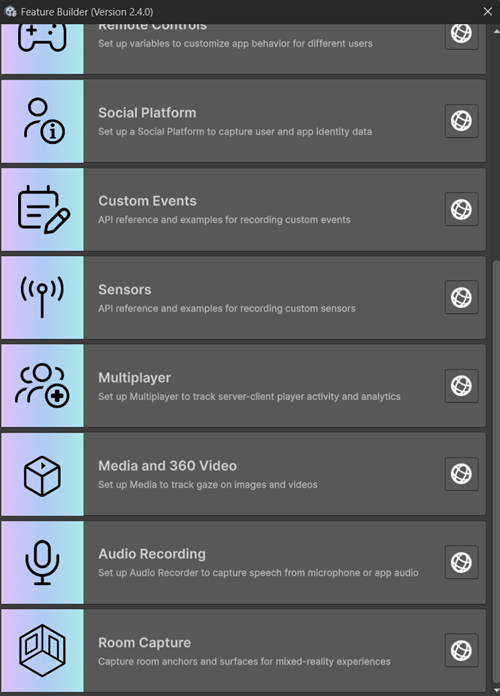
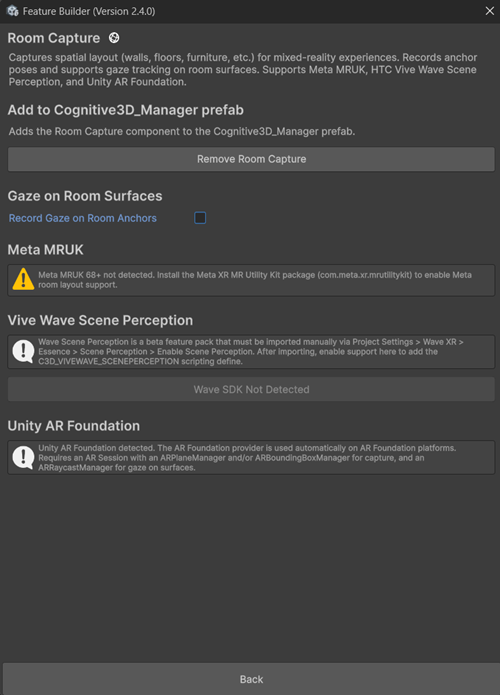
Press Add Room Capture. This adds the RoomCapture component to the Cognitive3D_Manager prefab. From this point on, every session captures room data automatically. No scripting is required beyond the per-platform prerequisites below.
Meta MRUK setup
If your project has MRUK 68 or newer installed, the Feature Builder shows a confirmation that the Meta provider is active. No additional steps are needed.
Before the participant starts a session, they must complete Quest's Space Setup to author the room. Without authored room data on the headset, Room Capture has nothing to capture and silently records no anchors.
Vive Wave setup
Wave Scene Perception is currently a beta feature pack and is not bundled with the Wave Essence package by default.
- Open Project Settings → Wave XR → Essence.
- Under Scene Perception, select Enable Scene Perception. This imports the feature pack into
Assets/Wave/Essence/ScenePerception/. - Return to the Feature Builder → Room Capture panel.
- Press Enable Wave Scene Perception Support. This adds the
C3D_VIVEWAVE_SCENEPERCEPTIONscripting define so the Vive provider compiles.
Note
Scene planes and 3D objects must be authored on the device using HTC's Shape Editor app before they can be captured. Until you create them, the Vive provider returns no anchors.
To disable Vive Wave support later, return to the same panel and press Disable Wave Scene Perception Support.
AR Foundation setup
The AR Foundation provider is enabled automatically when AR Foundation 6.0.7 or newer is installed. No scripting define toggle is required. It reads room data from the AR managers in your scene, so your AR rig must include the relevant managers:
| Manager | Captures | Required for |
|---|---|---|
ARPlaneManager |
Planes: walls, floor, ceiling, door/window frames (and furniture surfaces, see below) | Plane capture |
ARBoundingBoxManager |
Volumes: furniture such as table, couch, storage | Furniture as 3D volumes |
ARRaycastManager |
(none) | Gaze on surfaces |
At least one of ARPlaneManager or ARBoundingBoxManager must be present.
No bounding box manager? Furniture is still captured.
If your scene has an ARPlaneManager but no ARBoundingBoxManager, the provider widens the plane filter to capture every plane classification, including furniture like tables and couches, so that furniture isn't lost. When a bounding box manager is present, planes are limited to structural surfaces and furniture comes through as volumes instead.
Android XR scene-understanding permission
On the Android XR runtime, bounding box (furniture) detection requires the user to grant a runtime permission before tracking can begin: android.permission.SCENE_UNDERSTANDING_COARSE (or SCENE_UNDERSTANDING_FINE for higher-precision geometry).
1. Declare the permission as a direct child of <manifest> in your custom AndroidManifest.xml (Unity merges it at build; generate the file via Project Settings → Player → Android → Publishing Settings → Build → Custom Main Manifest):
<manifest xmlns:android="http://schemas.android.com/apk/res/android">
    <uses-permission android:name="android.permission.SCENE_UNDERSTANDING_COARSE" />
    <application>
        <!-- your activities -->
    </application>
</manifest>
2. Request it at runtime and enable the manager only after it's granted. These are dangerous (runtime) permissions, so declaring them is necessary but not sufficient. Set up your scene with the ARBoundingBoxManager component disabled, then enable it in the grant callback:
using UnityEngine;
using UnityEngine.Android;
using UnityEngine.XR.ARFoundation;

public class BoundingBoxPermissionGate : MonoBehaviour
{
    [SerializeField] ARBoundingBoxManager boundingBoxManager;
    const string Perm = "android.permission.SCENE_UNDERSTANDING_COARSE";

    void Start()
    {
        if (Permission.HasUserAuthorizedPermission(Perm))
        {
            boundingBoxManager.enabled = true;
        }
        else
        {
            var callbacks = new PermissionCallbacks();
            callbacks.PermissionGranted += _ => boundingBoxManager.enabled = true;
            Permission.RequestUserPermission(Perm, callbacks);
        }
    }
}
Request only the permission you declared, and gate the manager so a missing grant doesn't throw at runtime.
What gets recorded
Room Capture records two streams of data:
- Anchor manifest: each anchor's stable identifier, label, and shape (
planeorvolume). - Anchor data: pose (position and rotation), size (width and height for planes; width, height, and depth for volumes), and enabled state.
The data updates continuously as anchors are added, moved, or removed during the session, including when the participant rescans or edits the room. Scene changes within the same session re-emit room data so it stays correlated with the active Cognitive3D scene.
Gaze on surfaces
When Room Capture is active, gaze that lands on a real-world surface is recorded against that anchor instead of as a generic world hit. This lets the dashboard show heatmaps and engagement metrics tied to specific surfaces: what wall the participant looked at, which couch they focused on, how much time was spent looking at the floor.
You can toggle this behavior with the Record Gaze on Room Anchors option, available in both the Feature Builder → Room Capture panel and Cognitive3D Preferences. On AR Foundation it requires an ARRaycastManager in the scene.
 If you have a question or any feedback about our documentation please use the Intercom button (purple circle) in the lower right corner of any web page or join our Discord.