Object Groups
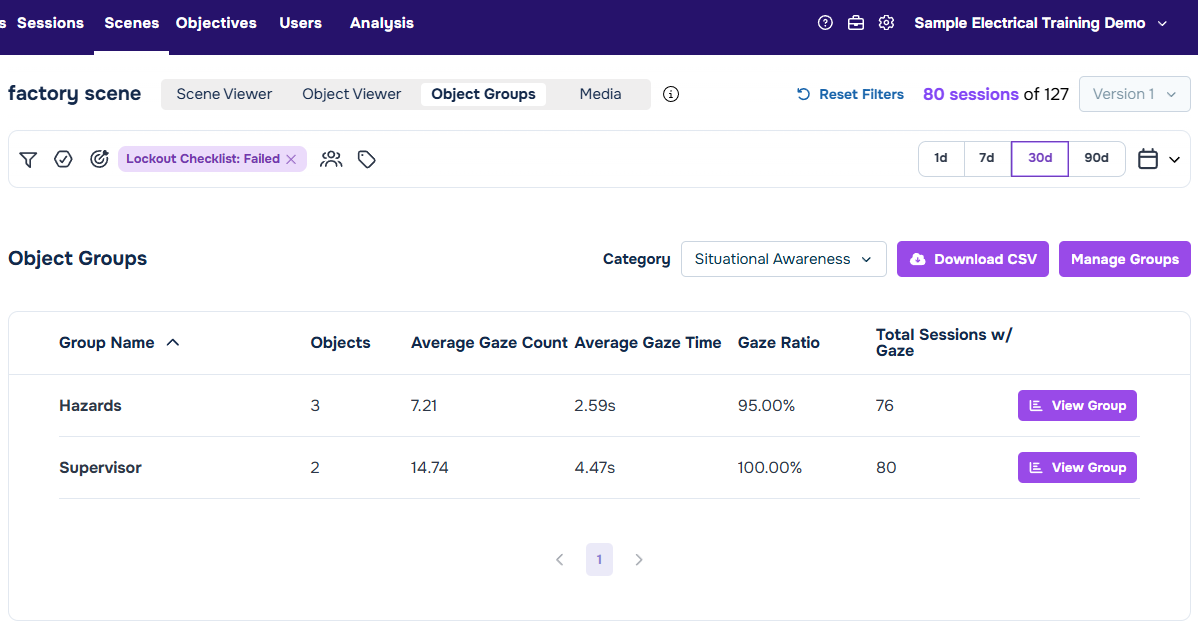
Object Groups provides a method to combine metrics from related objects, and to compare metrics from multiple groups of objects. Object groups and categories can be created after data is collected from sessions - you do not need to configure it before data analysis. Access it from the Object Groups tab on the Scenes page.
Info
A major concept to understand about Object Groups is the Category. Objects are mutually exclusive in Groups in the same Category.
For example, a Category may be 'Interaction Type' with the Groups 'Interactive' and 'Stationary'. A traffic cone Object might be interactive or stationary, but it cannot be both. A separate Category for 'Attention Level' might describe 'High Attention Required' and 'Low Attention Required', and the traffic cone could be put into a group in that category as well.
Available Metrics
The default view shows Object Groups in a particular Category. This can be changed with the dropdown on the top right of the table.
Various metrics are available on this page, including:
- Object Count - The number of Objects in this group.
- Average Gaze Count - The average number of times an object in this group is gazed at.
- Average Gaze Time - The average gaze time in seconds across the average of gaze times in this group of Objects.
- Gaze Ratio - The ratio of sessions that have any gaze on any of these objects, against session that have no gaze on these objects.
- Total Sessions w/ Gaze - The total count of sessions with gaze on any object within this group.
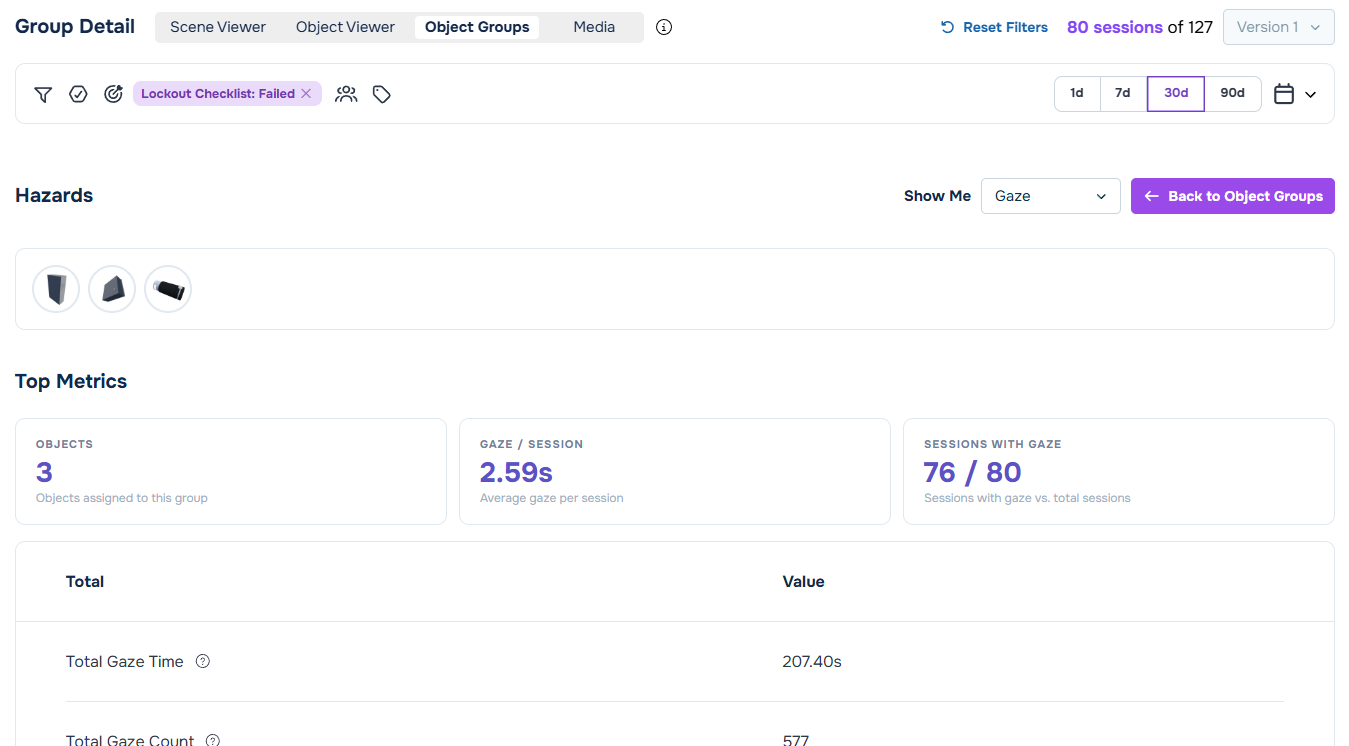
Additional metrics are available in the View Group page.
Managing Groups
Groups and Categories can be managed from the Manage Groups button on the top right of the table.
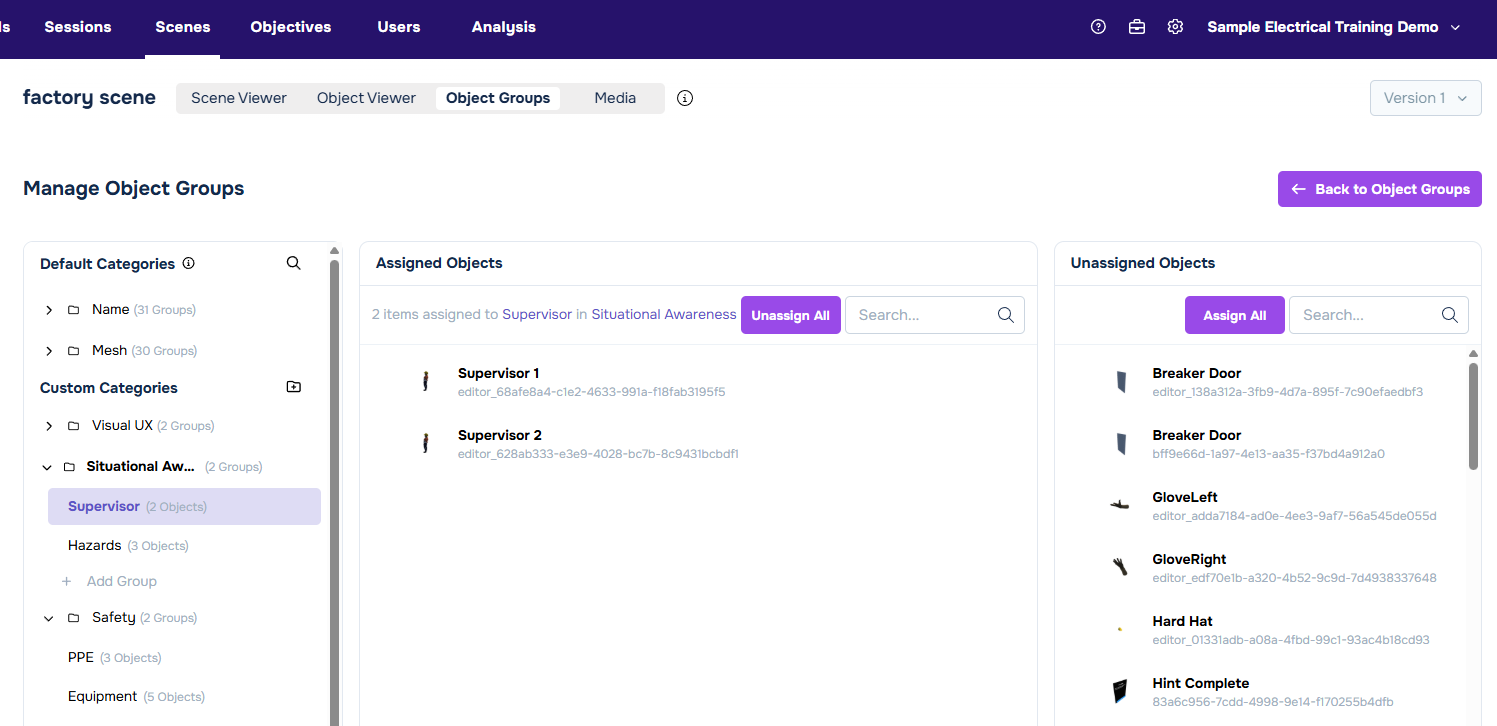
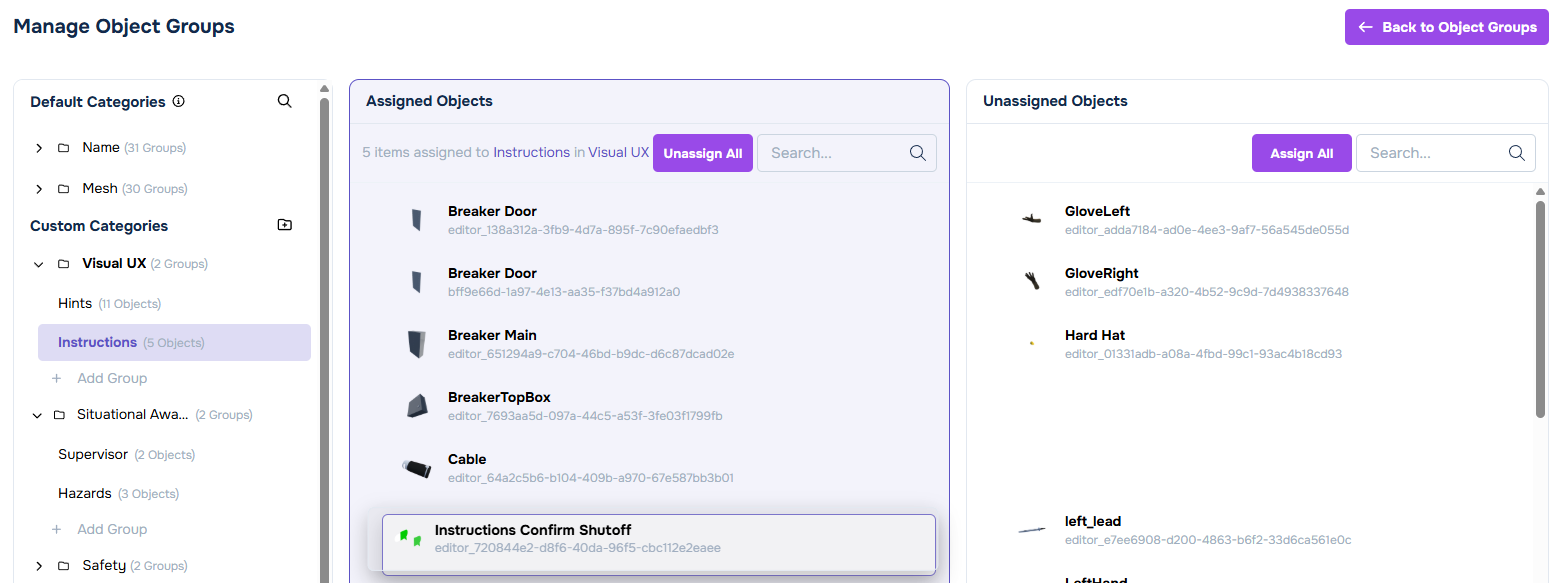
The left section lists Categories. Expand them to see the Groups inside. The middle section shows the Objects currently assigned to the selected Group. The right section shows objects you have not yet added to any Group in that Category.
Cognitive3D creates two Categories automatically and you cannot modify them - the Name category and the Mesh category.
Creating a Category
Create a new Category by pressing + in the left section header.
Creating a Group
Expand a Category and press the Add Group button. This creates a new Group containing 0 objects.
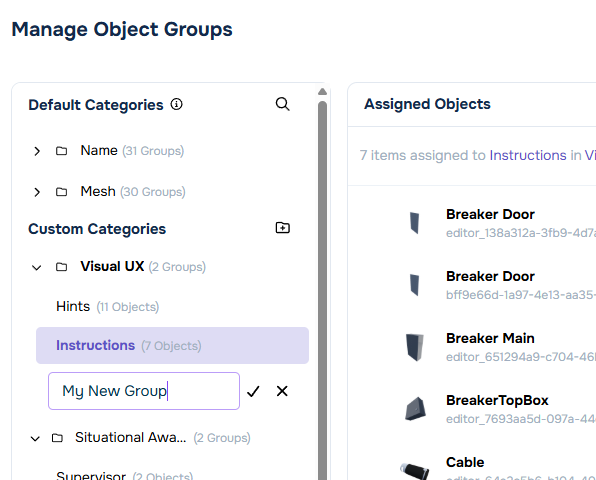
Drag objects from the Unassigned Objects section on the right to the middle section. You can use the Shift key to select multiple objects at once.
Example use cases
Consumer research
Consider a consumer research project where researchers present several varieties of cooking ranges to potential customers. The researchers could create Object Categories and Groups for:
- gas vs electric.
- electric induction vs electric convection.
- the number of burners on the stovetop.
- the number of years for the warranty.
The researchers could run their study with their subjects and record session data about which cooking ranges had the most gaze. Afterwards, the researchers could compare gaze times and Purchase Custom Events recorded on object groups to determine the most important features.
Games and entertainment
Consider a VR action-adventure game where the design team wants to know whether players discover and use the variety of items placed throughout a level. After sessions are collected, they could create these Categories and Groups:
- Item Rarity - Common, Rare, Legendary.
- Item Function - Melee weapons, Ranged weapons, Consumables.
The team could compare Average Gaze Time and Total Sessions w/ Gaze across the rarity groups, paired with a Pick up Custom Event. Legendary items with low gaze and few pickups indicate a discoverability problem, while items with high gaze but few pickups suggest a balance or affordance issue.
Enterprise simulation training
Consider an industrial safety simulation where a trainee walks through a facility, identifies hazards, and uses the correct safety equipment. After reviewing sessions, the training designers could create these Categories and Groups:
- Object Role - Hazards, Safety equipment, Distractor props.
- Hazard Severity - Critical hazards, Minor hazards.
The designers could compare Gaze Ratio and Total Sessions w/ Gaze between the Hazards and Distractor props groups to confirm trainees attend to real dangers rather than irrelevant scenery. Pairing gaze with a Hazard Identified Custom Event separates two failure modes. High gaze with few identifications means the trainee looked but did not recognize the danger, revealing an instructional gap. Low gaze points to a saliency or layout problem in the scene.
 If you have a question or any feedback about our documentation please use the Intercom button (purple circle) in the lower right corner of any web page or join our Discord.