HarmonEyes
HarmonEyes turns eye-tracking data into real-time cognitive-state metrics. With the HarmonEyes Unity SDK set up in your project, Cognitive3D records these metrics automatically as Sensors, so they appear on Session Replay alongside gaze, events, and your other data with no additional code.
The following metrics are recorded, one data point per HarmonEyes prediction:
- Mental Workload: mental demand and processing effort (Low / Moderate / High)
- Fatigue: alertness level (Alert / Neither / RatherDrowsy / Drowsy)
- Attention: how narrow or broad the participant's focus is (Narrow to Broad), plus a composite score
- Mental Readiness: the distribution of recent Mental Workload predictions across the session (low / moderate / high percentages)
Note
This integration was built and tested against the HarmonEyes Unity SDK, latest package as of June 2026.
Prerequisites
Before enabling the integration:
- Install and set up the HarmonEyes Unity SDK in your project following HarmonEyes' own documentation — including your HarmonEyes license key, the tracker preset for your hardware, and a gaze-sample collector.
- Make sure a HarmonEyes
AnalyzeEyeTrackingDatacomponent is present in your scene. This is the component Cognitive3D reads the metrics from; the integration does not set up HarmonEyes or manage its license for you. - Make sure eye tracking is enabled on your device.
Set up through the Feature Builder
The integration is enabled from the Feature Builder window in two steps.
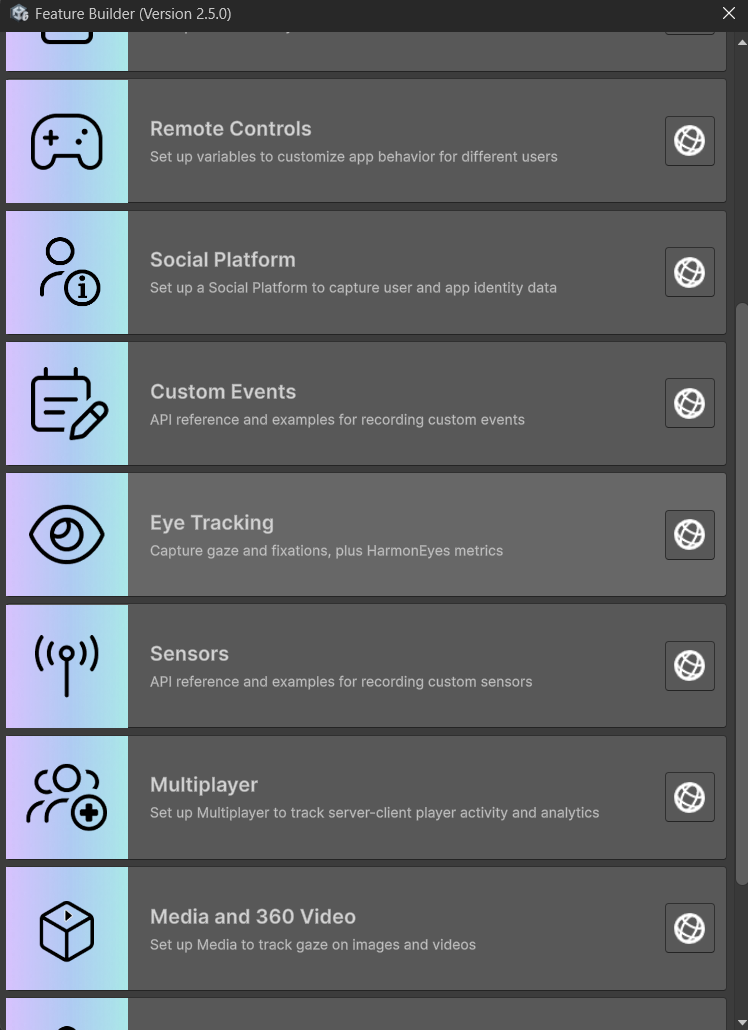
- Open the Feature Builder (Cognitive3D > Feature Builder) and select Eye Tracking.
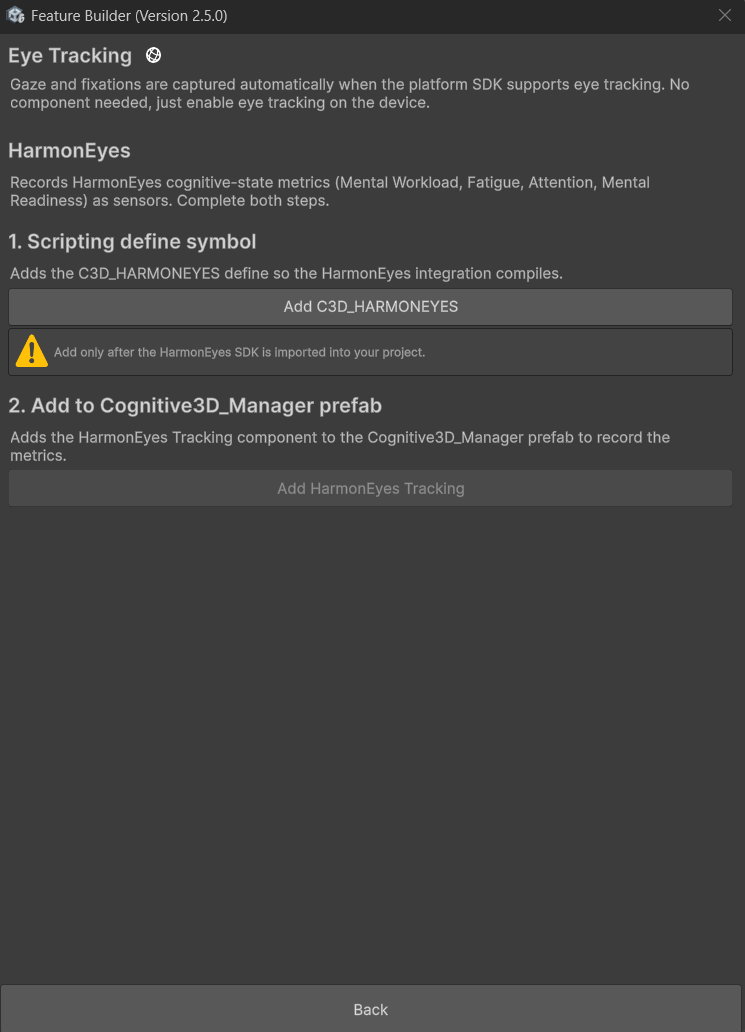
- In the HarmonEyes section:
- Step 1: Scripting define symbol. Click Add C3D_HARMONEYES. The HarmonEyes SDK is imported into your project's
Assetsfolder rather than as a package, so this scripting define is what lets the integration compile. Only add it after the HarmonEyes SDK is present in your project. - Step 2: Component on Cognitive3D_Manager. Click Add HarmonEyes Tracking. This adds the
HarmonEyesTrackingcomponent to yourCognitive3D_Managerprefab. The button is enabled once the define is set. The component subscribes to HarmonEyes when a session begins.
- Step 1: Scripting define symbol. Click Add C3D_HARMONEYES. The HarmonEyes SDK is imported into your project's
Recorded sensors
Each metric is recorded as a Sensor. You can view them from the Sensors tab in Session Replay.
| HarmonEyes metric | Sensor name | Values |
|---|---|---|
| Mental Workload | c3d.harmoneyes.mental_workload_level |
0 = Low, 1 = Moderate, 2 = High |
| Fatigue | c3d.harmoneyes.fatigue_level |
0 = Alert, 1 = Neither, 2 = RatherDrowsy, 3 = Drowsy |
| Attention (level) | c3d.harmoneyes.attention_level |
1 = Narrow to 5 = Broad |
| Attention (score) | c3d.harmoneyes.attention_score |
0.0 (narrow) to 1.0 (broad) |
| Mental Readiness (low %) | c3d.harmoneyes.mental_readiness_low_percent |
0 to 100 |
| Mental Readiness (moderate %) | c3d.harmoneyes.mental_readiness_moderate_percent |
0 to 100 |
| Mental Readiness (high %) | c3d.harmoneyes.mental_readiness_high_percent |
0 to 100 |
Mental Readiness is recorded as three separate sensors (its low, moderate, and high percentages), so you can see how the distribution shifts across the session.
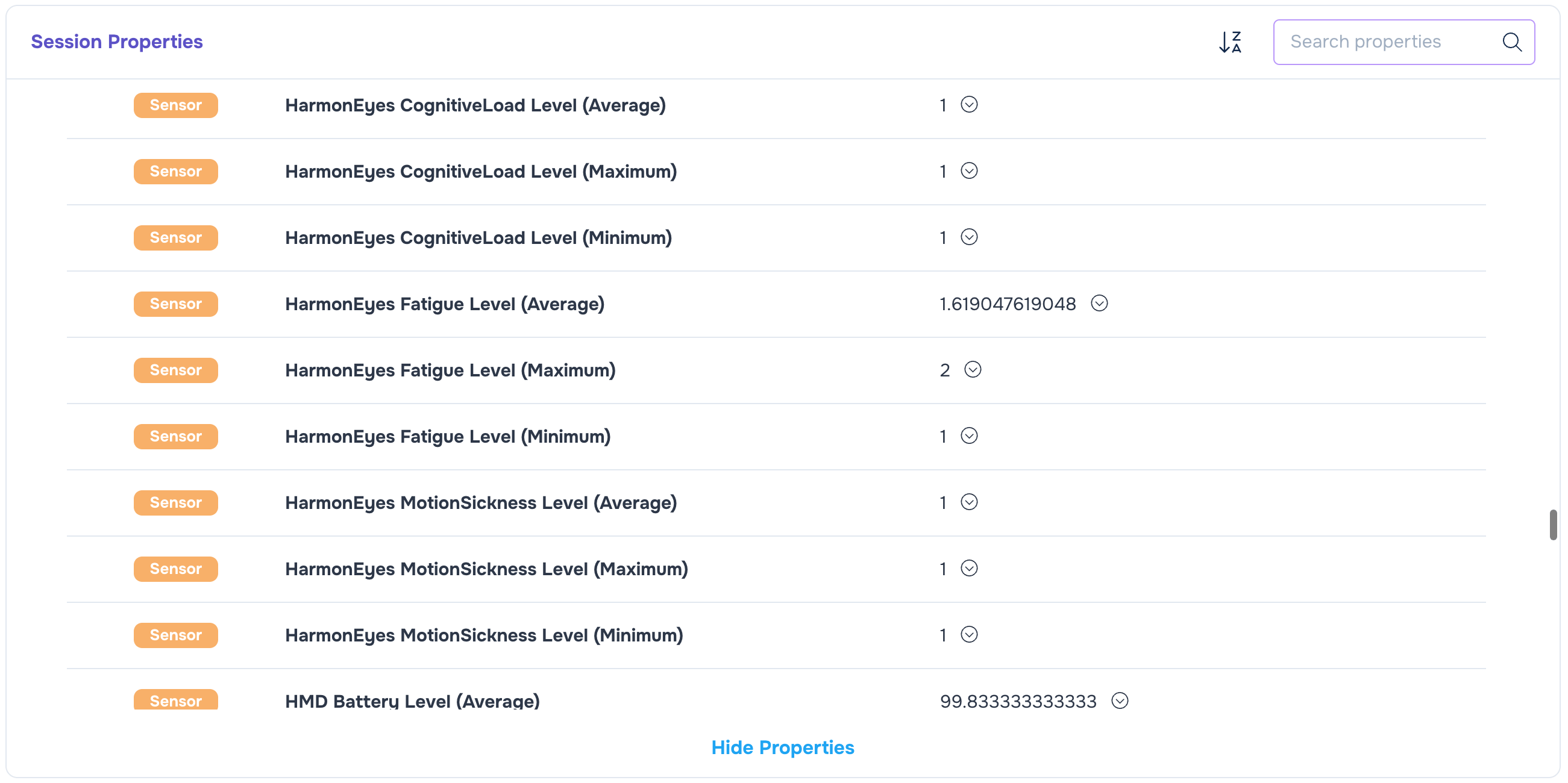
Recorded session properties
The HarmonEyes session statistics are also recorded automatically as Session Properties and are shown in the Session Details for any recorded session in the Sessions section on the Cognitive3D dashboard for your project. You may also retrieve this via the Cognitive3D API.
 If you have a question or any feedback about our documentation please use the Intercom button (purple circle) in the lower right corner of any web page or join our Discord.