Identify
The Identify sample provides in-VR panels that identify the person wearing the headset and associate the Cognitive3D session with that participant. When the user confirms their identity, the sample sets the participant ID on the SDK and tags the session with the method used.
It includes three interchangeable methods, all built on a shared panel base so they configure and behave consistently:
| Method | How it works | Best for |
|---|---|---|
| QR Code | Scans a token from a QR code using the headset passthrough camera, then resolves it to participant info. | Fast, hands-free check-in on camera-capable headsets. |
| PIN Code | A numeric keypad; the entered code is resolved to participant info. | Any headset, no camera required. |
| Verbal Code | Displays a generated code for the participant to read aloud to an operator, who links the session on their end. | Supervised or proctored sessions. |
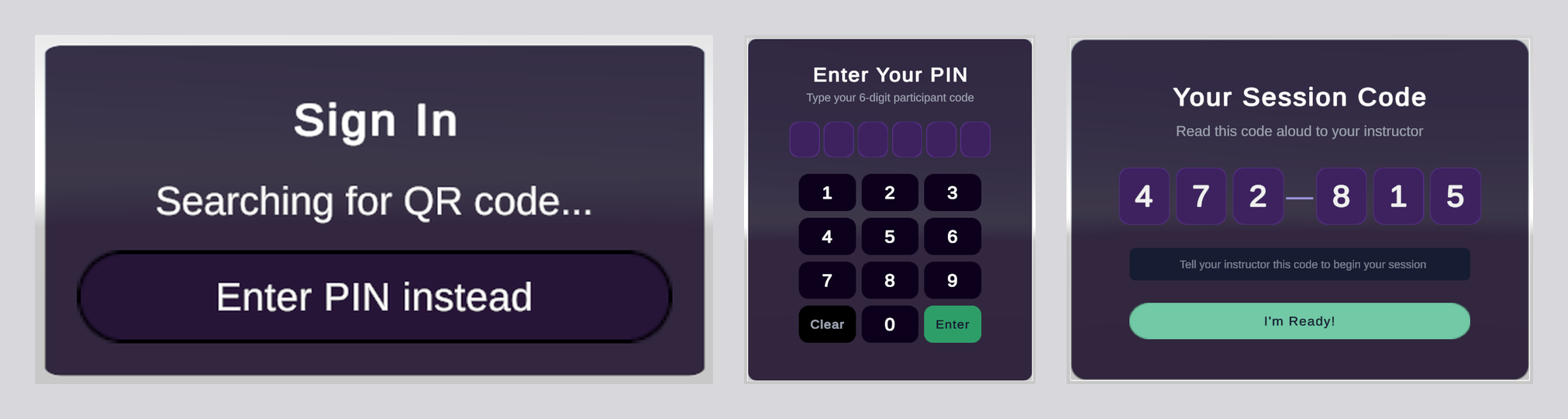
Each project will need some custom configuration. This is a template to help you get started faster.
This sample is the Unity counterpart to the dashboard Identify feature. Participants sign in through your organization's SSO on the Identify launch page and receive a six-digit code or QR code; the QR and PIN panels redeem that code so the session is attributed to the verified participant.
Set up Identify on the dashboard first
The codes the QR and PIN panels redeem come from your organization's Identify launch page. Configure the dashboard feature (connect your SSO, enable Identify, and customize the launch page) before wiring up these panels. See Identify on the dashboard.
Prerequisites
- The dashboard Identify feature is set up for your organization: SSO connected, Identify enabled, and the launch page configured, so participants can sign in and receive a code.
- The Cognitive3D Unity SDK 2.5.0 or newer is installed and your Application Key is set in the Project Setup wizard.
- A Cognitive3D session is started somewhere in your experience, so the participant data set at identification has a session to attach to. The panels themselves do not require an active session to run. See the Comprehensive Setup Guide.
- TextMeshPro is installed. The sample UI uses TextMeshPro.
- For the QR method, your headset supports passthrough with access to camera frames.
- For the XRI interaction mode, the XR Interaction Toolkit package is installed.
Install the sample
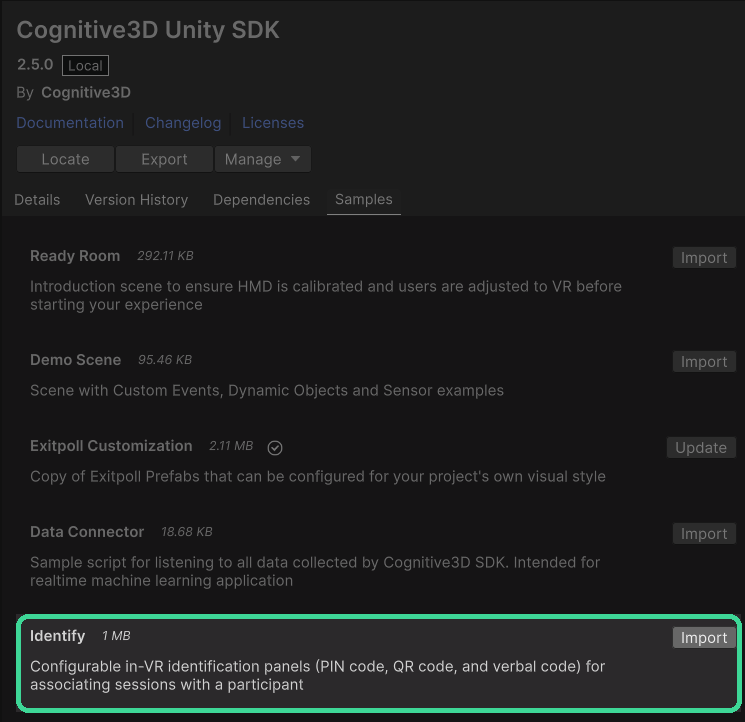
Add the sample to your project from the Cognitive3D Unity SDK samples in the Unity Package Manager window.
- Open Window ▸ Package Manager and select the Cognitive3D Unity SDK.
- Open the Samples tab and select Import next to Identify.
- The sample is copied into
Assets/Samples/Cognitive3D Unity SDK/<version>/Identify/, including the panel prefabs, scripts, and materials.
Quick start
- Add one of the panel prefabs, QR, PIN, or Verbal, to your scene.
- Wire a success event to whatever happens after identification, such as loading your experience scene. For QR and PIN, use either the panel's success event (for example On Pin Success) or the Confirmation panel's On Continue Success; for Verbal, use On Ready.
- Enter Play mode. The panel appears in front of the user, and on a successful identification the participant ID is set and your success event fires.
Identification methods
QR Code
The QR panel opens the headset camera, decodes QR codes each frame, and resolves the decoded token into participant info. On success it shows a Confirmation panel; on failure it shows the error and lets the user try again.
- Confirmation Panel is shown after a resolve.
- Fallback Panel Prefab is a panel, such as the PIN prefab, spawned when the user selects Enter PIN instead.
QR scanning requires a physical device with passthrough camera-frame access; it does not run in the Editor.
PIN Code
The PIN panel shows a numeric keypad. The participant types the 6-digit code issued by the Identify launch page, and on Enter it is resolved through the Token Resolver. A failed code shows an inline error for retry; a successful code shows the Confirmation panel.
- Pin Length is 6, matching the participant code the dashboard issues.
Verbal Code
The Verbal panel displays a randomly generated code for the participant to read to an operator. When the participant selects Ready, the On Ready event fires and the code is set as both the participant ID and the participant name.
Token resolution
The Token Resolver exchanges an entered or scanned code for participant information. By default it calls the Cognitive3D Identify service, which validates the code issued by your Identify launch page and returns the participant ID, name, and email to apply to the session.
- Timeout Seconds sets the request timeout (default 10).
Confirmation panel
The Confirmation panel is shown after a resolve. It displays the participant on success or the error on failure, with a Continue button.
- On Continue Success, wire your scene transition or next step here.
- On Continue Failure, already wired in the prefab to resume scanning / retry, so no action is needed.
VR interaction modes
Set Interaction Mode on each panel:
- Cognitive3D Pointer, the SDK's gaze and controller pointer. No external package required.
- XRI Ray Interactor, the XR Interaction Toolkit ray interactor. Requires the XR Interaction Toolkit package.
Panel anchoring
Anchor Mode controls how a panel is placed:
- Follow Camera, head-locked a set distance in front of the viewer.
- Player Relative, placed in front of the viewer once, then left in world space, with optional soft-follow and a distance clamp.
- World Space, a fixed placement in the environment, with an optional override position, rotation, and attach transform.
Theming
Panels are styled from a shared Panel Color Scheme asset, created with Create ▸ Cognitive3D ▸ Identify ▸ Panel Color Scheme. You can assign the same scheme to multiple panels for a consistent look.
Events
| Panel | Events |
|---|---|
| QR Code | On QR Success, On QR Failure |
| PIN Code | On Pin Success, On Pin Failure, On Back Requested |
| Verbal Code | On Ready |
| Confirmation | On Continue Success, On Continue Failure |
What gets recorded
On confirmation the sample sets the participant ID, plus name and email when resolved, and the session property c3d.identify.method with a value of qr_code, pin_code, or verbal_code. See Participants for how participant data appears on the dashboard.
See also
 If you have a question or any feedback about our documentation please use the Intercom button (purple circle) in the lower right corner of any web page or join our Discord.