Dashboard Builder (Beta)
Dashboard Builder (Beta) picks widgets for a custom dashboard from a request you type in plain language. Describe what you want to see, such as comfort and performance or an engagement overview, and it selects matching widgets in the widget selector for you to review and save.
Beta
Dashboard Builder is in beta. Its suggestions can be incomplete or include widgets you did not expect, so review the selection before you save the dashboard.
Opening Dashboard Builder
Dashboard Builder is part of the Custom Dashboard Selector, the window you use to choose widgets for a custom dashboard. Open the selector in one of these ways:
- To create a new dashboard, select Create Dashboard at the bottom of the Dashboards section of the sidebar.
- To change an existing custom dashboard, open it and select Widget Selector.
- On a custom dashboard with no widgets, select Start Building Your Dashboard.
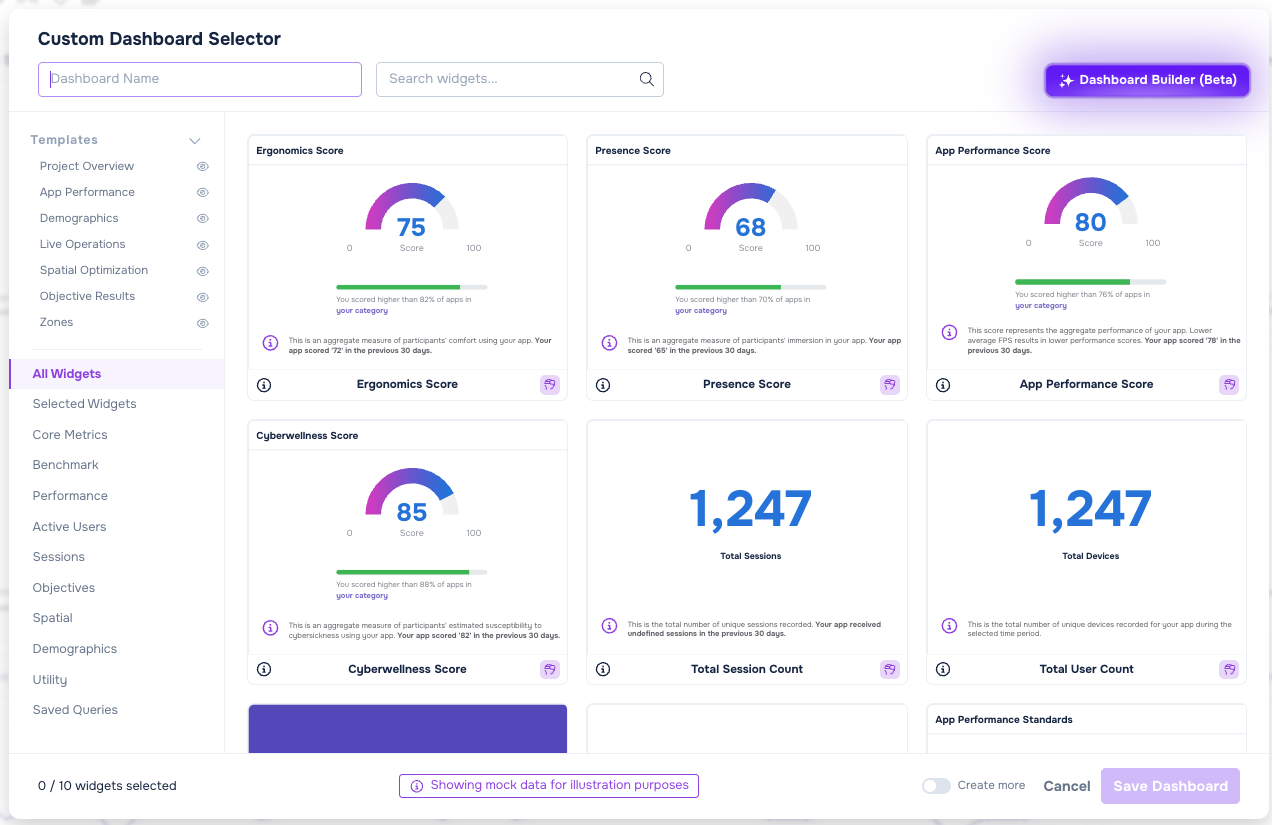
Then select Dashboard Builder (Beta) at the top of the selector. A chat panel opens.
Creating and editing custom dashboards requires an administrator role and a plan that includes custom dashboards. See Roles and Permissions.
Building a dashboard from a prompt
- Open Dashboard Builder.
- Type a request in the message box and press Send. You can also select one of the suggestions under Try asking.
- Wait while the assistant works. The chat shows its progress, then a short summary of what it picked.
- Review the widgets. The selector switches to Selected Widgets so you can see the result.
- Configure any widgets that need it. For example, choose the objective for an objective widget or the scene for a spatial widget.
- Enter a name in Dashboard Name if the dashboard does not have one.
- Press Save Dashboard.
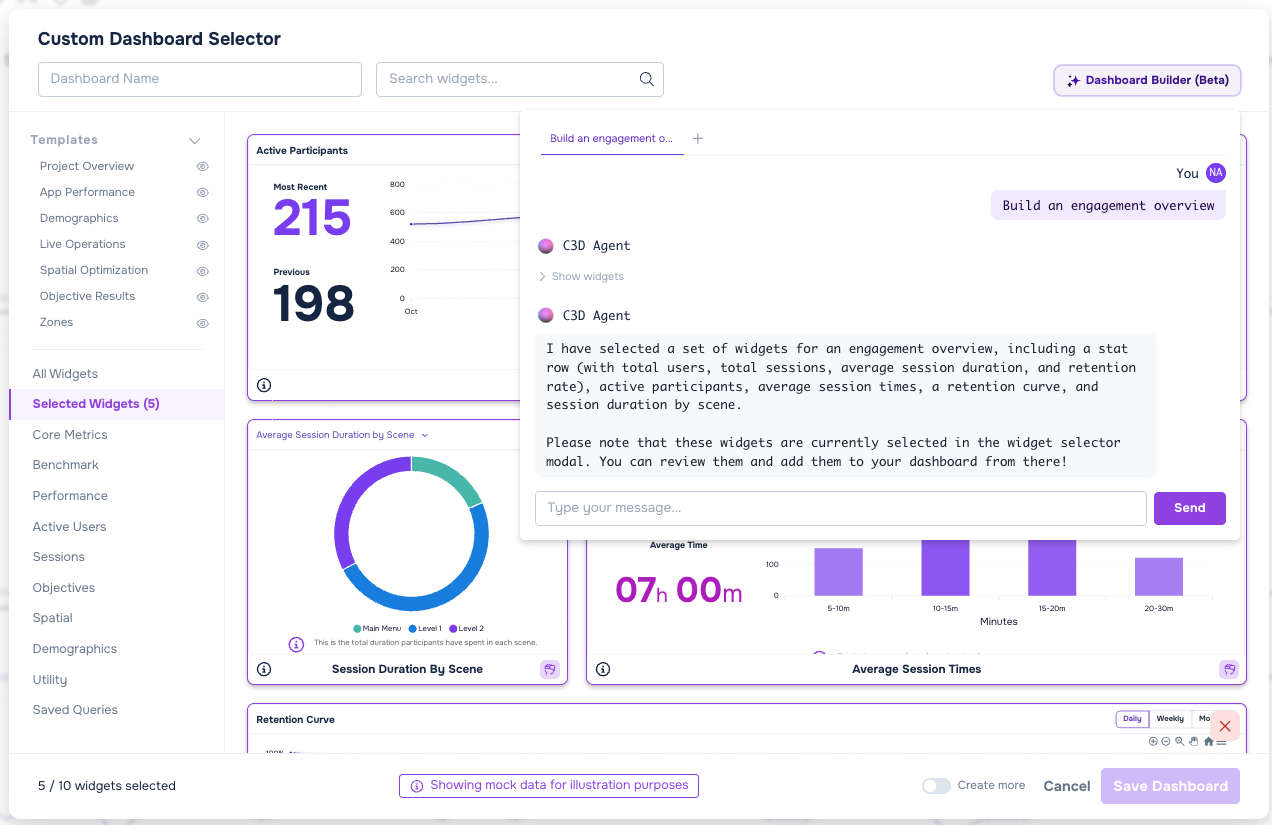
Dashboard Builder only changes the selection in the widget selector. Your dashboard does not change until you press Save Dashboard. Press Cancel to close the selector without saving.
Suggested prompts
When a chat is empty, Dashboard Builder shows suggestions under Try asking.
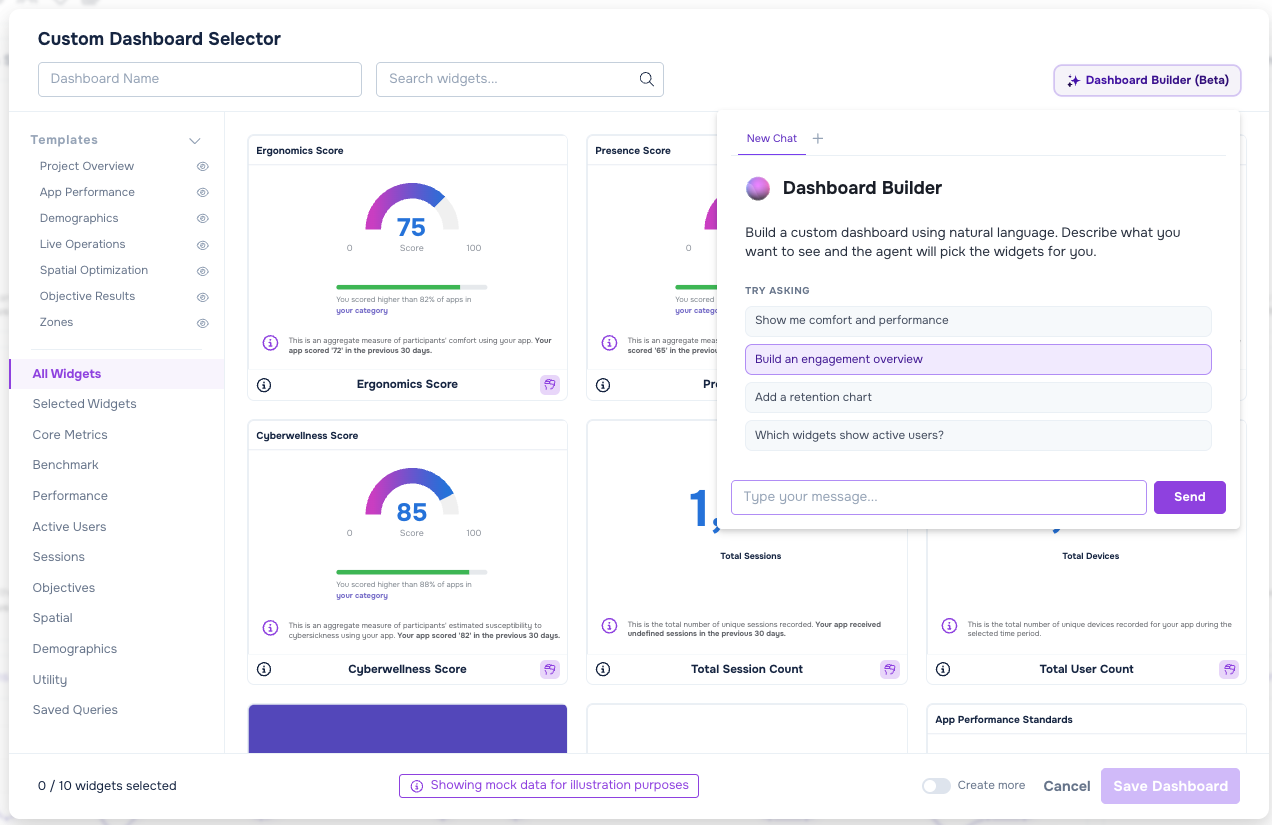
In most projects, the suggestions are:
- Show me comfort and performance.
- Build an engagement overview.
- Add a retention chart.
- Which widgets show active users?
In a Robotics project, the suggestions are:
- Build a robot activity overview.
- Show me objective pass rates over time.
- Which zones do robots spend the most time in?
- Add battery drain and session length.
Refining the selection
Send a follow-up message to change the selection, such as "remove the retention chart" or "add session length". Dashboard Builder takes the widgets already selected into account, keeps them, and adds or removes only what you ask for.
Each reply replaces the whole selection in the selector with the set Dashboard Builder returns. If you added widgets by hand and want to keep them, mention them in your request or check the selection after each reply.
To return to an earlier result, select Show widgets under that reply, then select Apply Widgets. Copy Widgets copies the result as text.
Working with several chats
The tabs at the top of the chat panel hold separate conversations. Select the New Chat icon (+) to start a new chat. When more than one chat is open, select the Close chat icon (x) on a tab to close it. You can have up to five chats open at a time. Each tab is named after the first message you sent in it.
What Dashboard Builder can do
- Choose from the built-in widgets in the widget selector, using only widgets that apply to your project's type.
- Select up to 10 widgets, which is the maximum for a custom dashboard. If your request needs more, it keeps the most relevant ones.
- Put the most important widgets first.
- Fill in the heading and text for a Text Widget.
- Choose which statistics appear in a Stat Row widget.
- Set a Scene Viewer widget to its performance or spatial view.
- Ask you a question when your request is too vague to pick any widgets.
Limitations
- Dashboard Builder cannot add widgets for queries you saved in Advanced Analysis. Add those from the widget selector or with Add to Dashboard on the Advanced Analysis page.
- It does not configure objective widgets or spatial widgets for you. After it selects them, choose the objective or scene in the widget selector, or set Default Objective or Default Scene at the top of the selector.
- It does not query your data. It picks widgets by what they show, so it cannot tell you whether a widget has data for your project.
- It tends to pick the fewest widgets that answer a request. Ask for breakdowns or detail explicitly if you want them.
Tips for better prompts
- Name a topic or metric, such as comfort, performance, retention, engagement, or active users.
- Ask for one change at a time when you refine a selection.
- Ask for a breakdown or detail if you want more than a headline widget.
- Mention zones or areas of a scene when you want spatial widgets.
Troubleshooting
- The assistant cannot find matching widgets. Rephrase the request and name a metric or topic, such as comfort, performance, retention, or active users.
- The assistant says your request was flagged. Rephrase the request.
- Failed to send message. Please try again. The message did not reach the assistant. Send it again.
- The assistant asks a question instead of selecting widgets. Reply in the same chat with more detail about what you want to see.
- You cannot save the dashboard. Hover over Save Dashboard to see what is missing. A dashboard needs a name and at least one widget, and some widgets need an objective, a scene, or text before you can save.
See also
- Query Builder (Beta) — build an analysis query from a prompt.
- Agentic tools overview — every AI tool that works with Cognitive3D.
- Zones — the zone widgets available in the Spatial category.
- Roles and Permissions — who can create and edit custom dashboards.
 If you have a question or any feedback about our documentation please use the Intercom button (purple circle) in the lower right corner of any web page or join our Discord.