Query Builder (Beta)
Query Builder (Beta) builds an analysis query from a request you type in plain language. Describe the data you want, such as the most common events or sessions broken down by app version, and it fills in the query on the Advanced Analysis page and runs it.
Beta
Query Builder is in beta. Check the filters, grouping, and operation it chooses before you rely on the results or save the query.
Opening Query Builder
- Open a project and go to the Advanced Analysis page.
- Start a new query, or open a saved query from the left navigation panel.
- Select Query Builder (Beta) at the top right of the query. A chat panel opens.
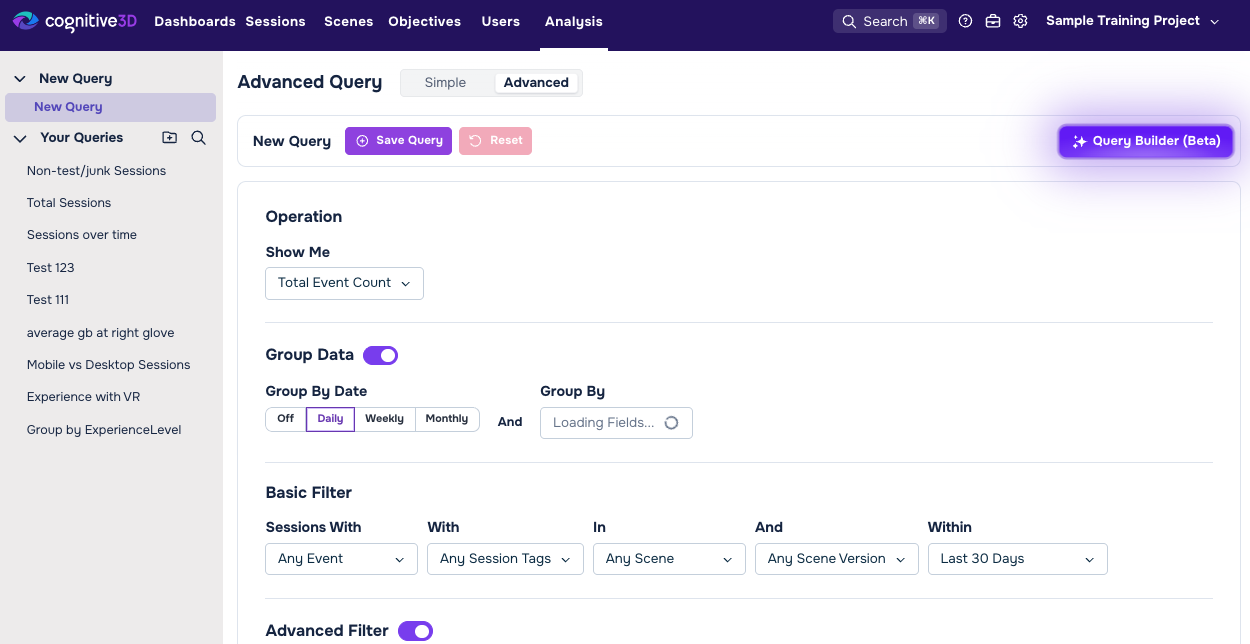
If you do not see Query Builder (Beta) on the Advanced Analysis page, it is not turned on for your account yet. Contact support to ask about access.
Building a query from a prompt
- Open Query Builder.
- Type a request in the message box and press Send. You can also select one of the suggestions under Try asking.
- Wait while the assistant works. The chat shows its progress, then a short summary of the query it built.
- Query Builder fills in the query sections on the page and runs the query. The chart updates with the results.
- Check the Operation, Group Data, and filter sections to confirm the query matches what you asked for.
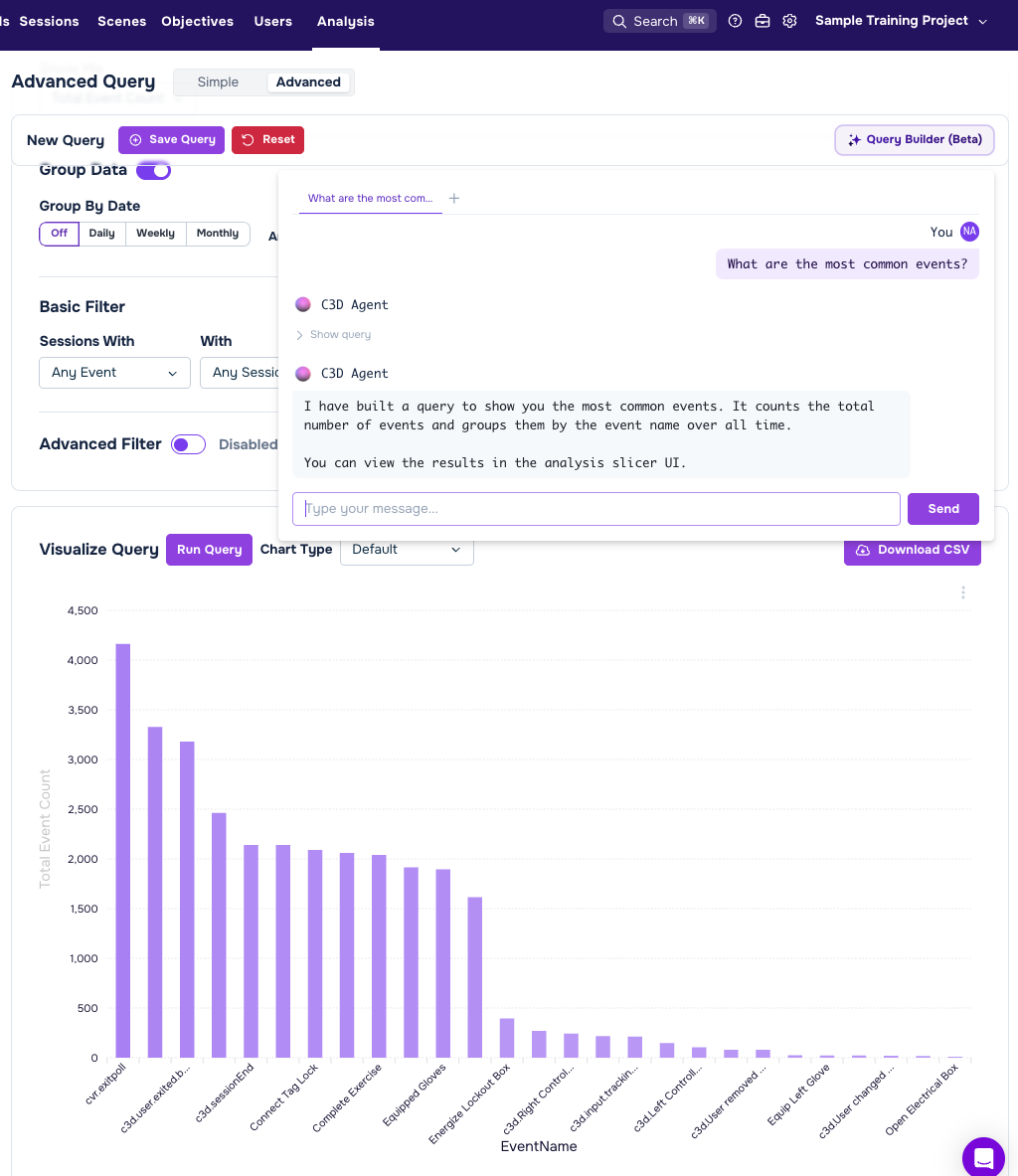
Query Builder does not save the query. To keep it, save it as you would any other query. See Saving queries.
Suggested prompts
When a chat is empty, Query Builder shows suggestions under Try asking.
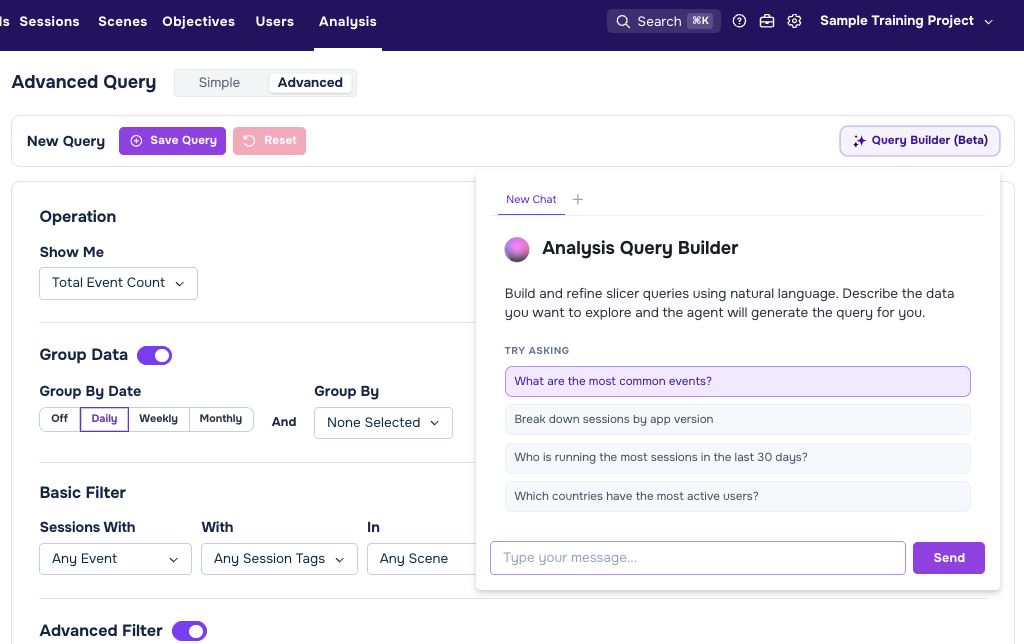
In most projects, the suggestions are:
- What are the most common events?
- Break down sessions by app version.
- Who is running the most sessions in the last 30 days?
- Which countries have the most active users?
In a Robotics project, the suggestions are:
- What are the most common events?
- Break down sessions by robot.
- How many objectives passed this week?
- Show average battery level by robot.
Refining a query
Send a follow-up message to change the query, such as "only the last 90 days" or "exclude Quest 2". Query Builder starts from the query currently on the page, including changes you made by hand, and changes only what you ask for.
To return to an earlier result, select Show query under that reply, then select Apply Query. Copy Query copies the query as text.
Working with several chats
The tabs at the top of the chat panel hold separate conversations. Select the New Chat icon (+) to start a new chat. When more than one chat is open, select the Close chat icon (x) on a tab to close it. You can have up to five chats open at a time. Each tab is named after the first message you sent in it.
Each query on the Advanced Analysis page has its own set of chats.
What Query Builder can do
Query Builder sets the same options you can set by hand on the Advanced Analysis page:
- Scenes and versions. It matches a scene or scene version you name. If you do not name one, the query covers all scenes.
- Events. It matches a specific event you name. Phrases such as "event count" or "number of events" count all events instead.
- Date range. It uses today, yesterday, the last 7, 30, 90, or 365 days, all time, or a custom date range.
- Session tags and test mode. It can exclude idle sessions or filter by a session tag you name. It switches to test mode only when you ask for test data. See Filters.
- Filters. It builds filters on session and event properties. It combines them with AND and OR conditions, and can place them in groups.
- Group Data. It groups results by date, by a property, or both.
- Operation. It counts sessions or events, or calculates the sum, minimum, maximum, or average of a numeric property.
Query Builder only uses scenes, events, properties, and values that exist in your project. If you mention a value it cannot find in your data, it asks you to clarify instead of guessing. You can also ask which values a property has, such as "what cities are available?".
Limitations
- Query Builder answers by building a query on the page, not with a written answer in the chat. It does not create dashboard widgets.
- It does not save queries or add them to a dashboard. Use Save or Add to Dashboard on the Advanced Analysis page.
- It cannot place a filter group inside another filter group.
Tips for better prompts
- Name what you want to measure, such as sessions, events, or the average of a numeric property.
- Name the scene, event, or session tag exactly as it appears in your project.
- State the date range, such as "last 30 days".
- For a filter, use a value exactly as it appears in your data. If you are not sure, ask which values are available first.
- Ask for one change at a time when you refine a query.
Troubleshooting
- The assistant asks a question instead of building a query. A value in your request did not match your data, or the request was ambiguous. Reply in the same chat with the exact value, or ask which values are available.
- The assistant says it could not build a query. Rephrase the request, and name the measurement and any filters explicitly.
- The assistant says your request was flagged. Rephrase the request.
- Failed to send message. Please try again. The message did not reach the assistant. Send it again.
- The results are not what you expected. Check the Operation, Group Data, and filter sections on the page, then correct them by hand or send a follow-up message.
See also
- Advanced Analysis — build, run, and save queries by hand.
- Dashboard Builder (Beta) — pick widgets for a custom dashboard from a prompt.
- Filters — session tags, test mode, and other filters.
- Agentic tools overview — every AI tool that works with Cognitive3D.
 If you have a question or any feedback about our documentation please use the Intercom button (purple circle) in the lower right corner of any web page or join our Discord.