Report Subscriptions
A report subscription delivers a report to Slack, email, or both on a schedule, so your team sees what is happening in a project without opening the dashboard. Subscribe to a Dashboard report for a snapshot of a project dashboard, or to an Analyst report for a written summary of what changed in a project or across your organization.
Prerequisites
- You need the Organization Admin role to create, edit, pause, or delete a subscription. See Roles and Permissions.
- To deliver to Slack, connect your Slack workspace first. See Slack Integration.
Create a subscription
Open Organization Settings. Select Report Subscriptions. Every report type uses the same wizard.
- Press Create Subscription. The Create Report Subscription wizard opens.
- On the Type step, select Dashboard report or Analyst report. Press Continue.
- On the Report step, enter a Report Name of up to 64 characters. Fill in the other fields for your report type, described in Dashboard report and Analyst report.
- On the Destination step, select Slack, Email, or both. See Destinations.
- On the Schedule step, choose when the subscription sends the report. Press Create.
The wizard opens on the Type step, with one card for each kind of report:
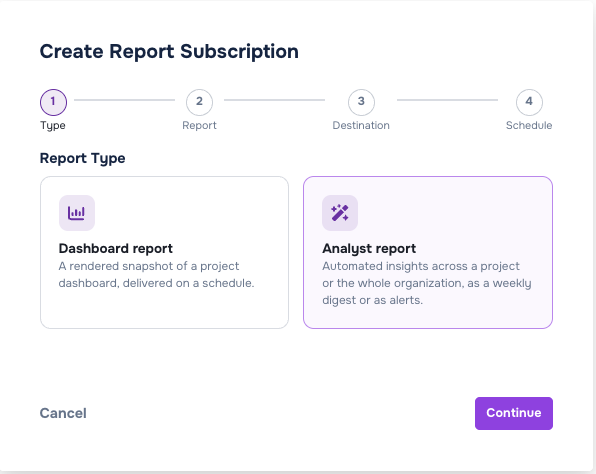
The numbered steps at the top show your progress through the wizard. Live Anomaly Alerts has no Schedule step. Press Create on the Destination step instead.
The Schedule step has these fields:
| Field | Description |
|---|---|
| Frequency | How often the subscription sends the report. A Dashboard report offers Daily, Weekly, and Monthly. A Weekly Digest is always Weekly. |
| Day of Week | The delivery day of a weekly schedule. |
| Day of Month | The delivery day of a monthly schedule, from 1 to 28. |
| Time | The delivery time. |
| Timezone | The timezone that Time uses. |
A new subscription starts as Weekly on Monday at 09:00 in your browser's timezone.
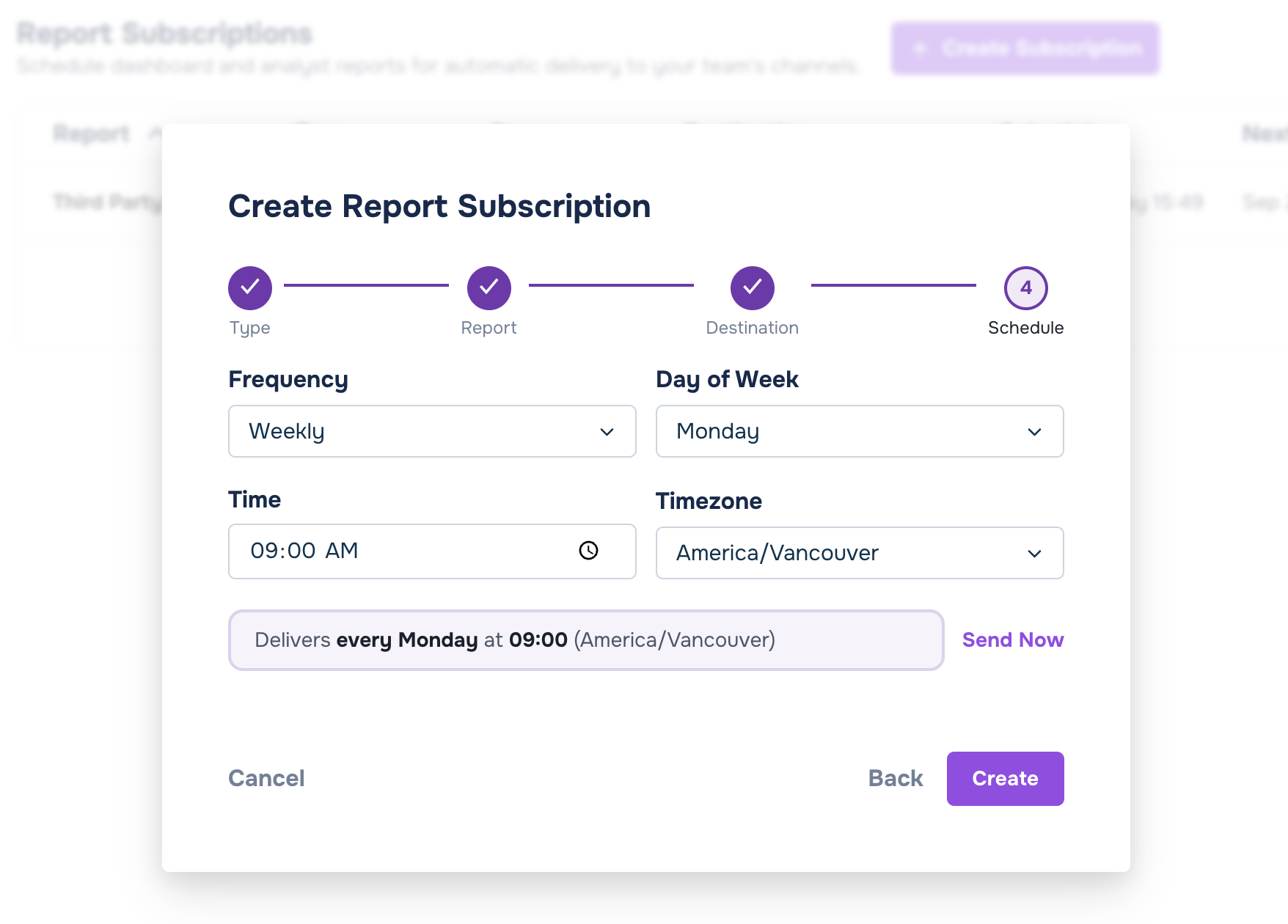
The line under the fields restates the schedule in words. Send Now sends the report to your destinations before you create the subscription, so you can check the result first.
Dashboard report
A Dashboard report renders one dashboard from one project and sends it on your schedule. Use it for figures your team checks regularly, such as weekly session counts or the results of an objective.
The Report step has these fields for a Dashboard report:
| Field | Description |
|---|---|
| Project | The project that the dashboard belongs to. |
| Dashboard | The dashboard to send. Default lists the built-in dashboards for the project, such as Project Overview and App Performance. Custom lists the project's custom dashboards. |
| Date Range | The period of data in each report, from Today to Last 365 days. The default is Last 30 days. |
| Theme | The colors of the rendered report, Light or Dark. |
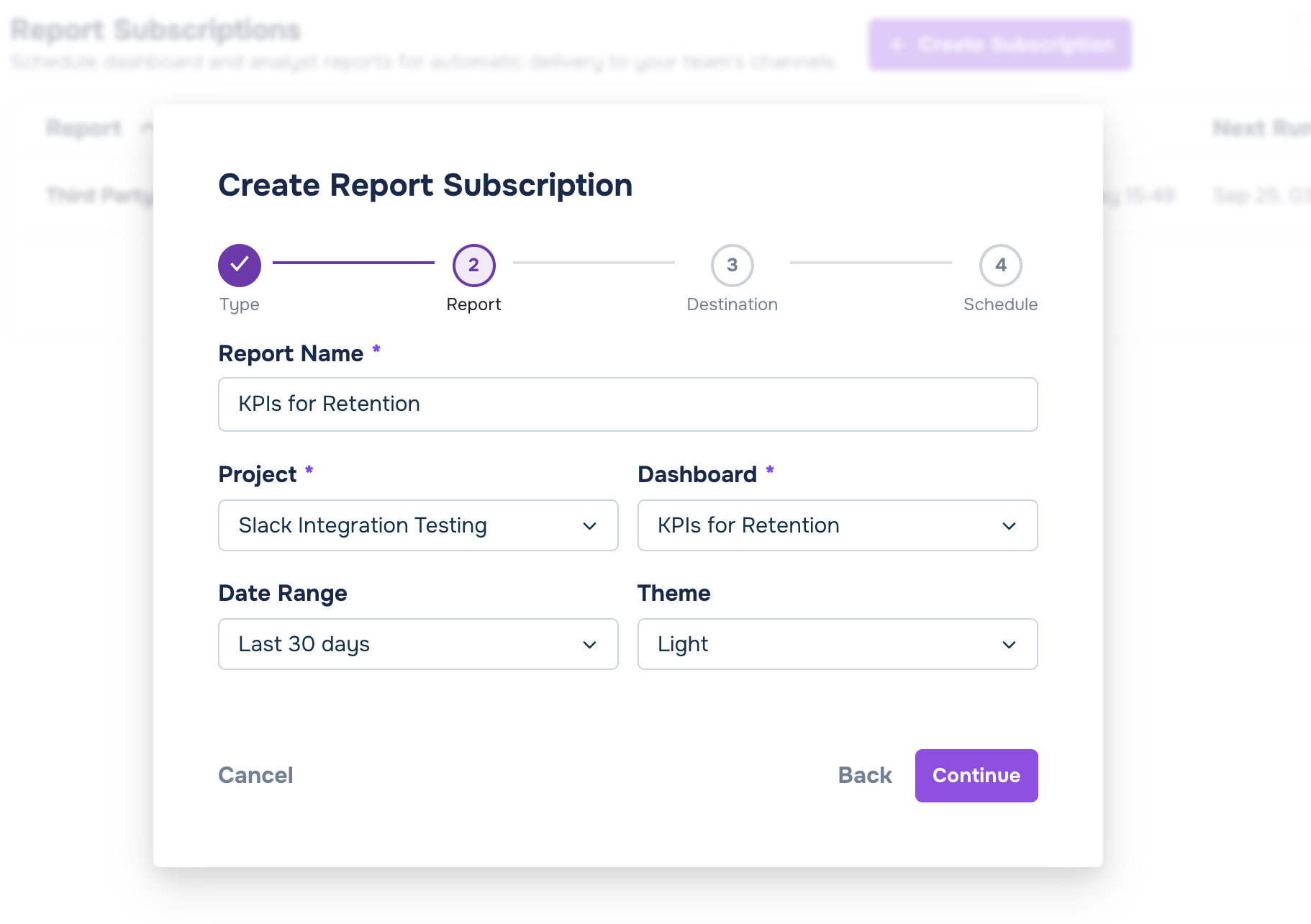
Two default dashboards need one more selection. If you select Objective Results, choose an Objective and a Version. If you select Zones, choose a Scene.
Slack receives the dashboard as images. Email receives it as a PDF attachment. On the Schedule step, Send Now renders the dashboard and sends it straight away, and the wizard shows the result for each destination.
Analyst report
An Analyst report runs a set of analyzers over your session data and reports what changed, such as scores that got worse after a new build or an objective with a falling completion rate. Each finding is two or three sentences, with its numbers and a link back to the dashboard.
The Report step has these fields for an Analyst report:
| Field | Description |
|---|---|
| Report Type | Weekly Digest sends one summary of the week. Live Anomaly Alerts sends a finding when something unusual shows up. |
| Scope | Whole organization covers every project. A specific project covers one project. |
| Project | The project to cover. This field appears when Scope is A specific project. |
| Analyzers | The analyzers the report runs. See Analyzers. |
With Choose analyzers selected, the step lists every analyzer with a short description:
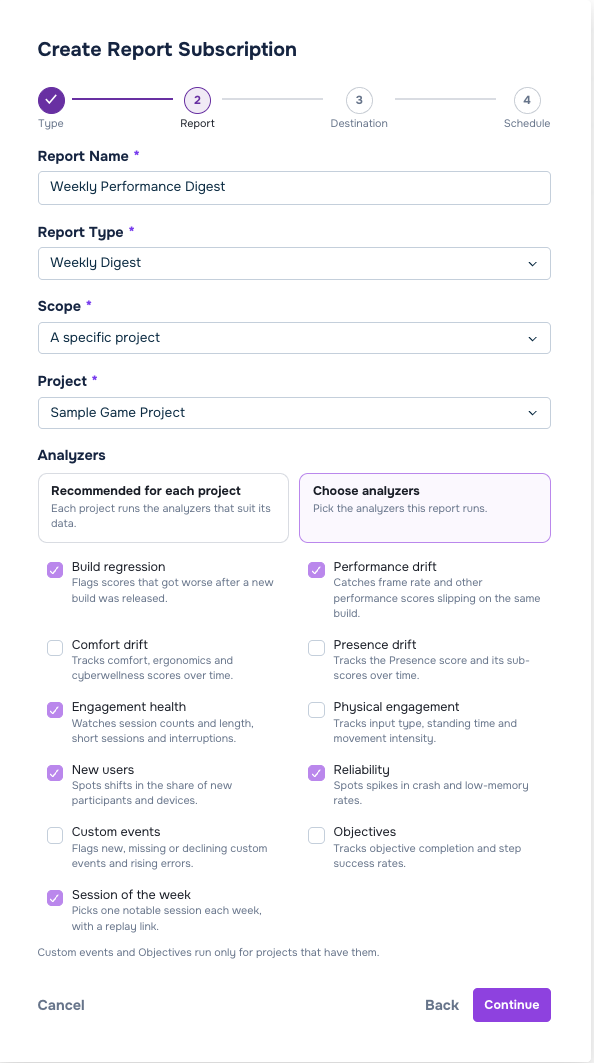
You cannot change Report Type or Scope after you create the subscription.
Weekly Digest
A Weekly Digest is one summary of the week, sent on the day you choose. Each digest covers the week that ends on its delivery day.
- Frequency is fixed to Weekly. You choose the Day of Week, the Time, and the Timezone.
- With Whole organization scope, one digest covers every project. It lists each project that has nothing to report as quiet.
- A quiet week is a normal result.
- A finding that continues from an earlier digest says so and shows the date it was first seen.
- In Slack, a long digest spans several messages and thread replies. By email, the digest arrives as a PDF attachment.
A digest for a whole organization looks like this in Slack:
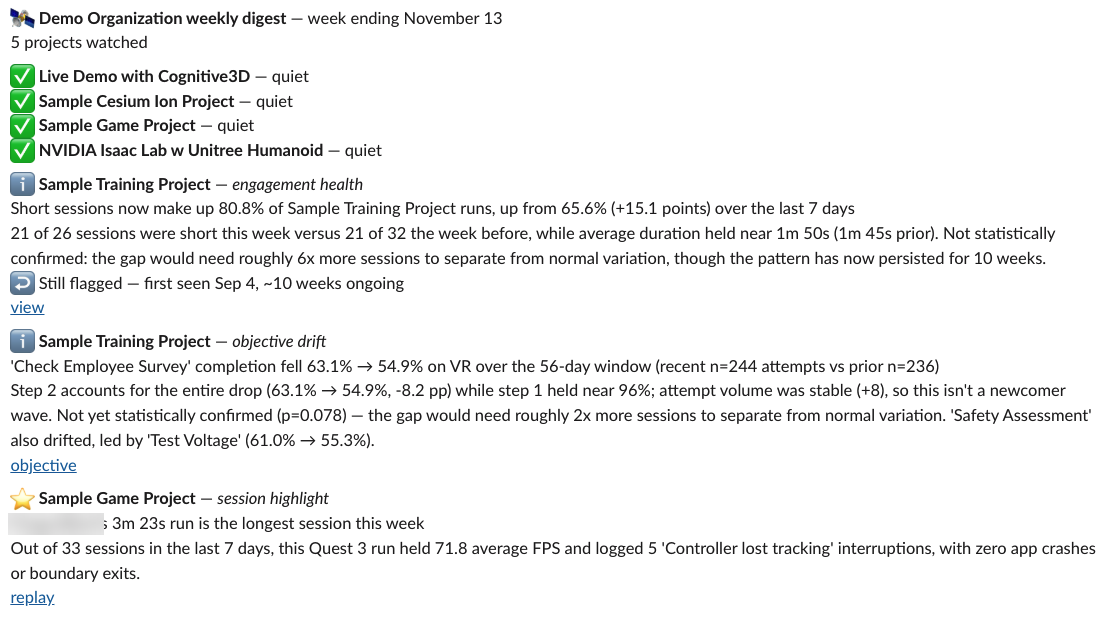
The digest opens with the week it covers and the number of projects it watched. Quiet projects come first. Each finding then names its project and analyzer, and ends with a link back to the dashboard.
Send Now does not deliver a Weekly Digest straight away. Cognitive3D generates the digest first and sends it when it is ready, which takes a few minutes per project. Cognitive3D generates one digest at a time, so your request waits while another digest is in progress.
Live Anomaly Alerts
Live Anomaly Alerts checks your data once a day and sends only the findings that are new since the last check. When nothing is new, it sends nothing.
- Checks run daily at 09:00 in the timezone of the browser you create the subscription in. The first check runs when you create the subscription.
- There is no Schedule step and no Send Now.
- Slack receives one message per alert, so your team can discuss each alert in its own thread. Email receives one PDF per check.
- Live Anomaly Alerts evaluates four analyzers weekly instead of daily. See Analyzers.
- A check skips a project with no sessions in the last 28 days.
- If delivery fails, the alert goes out at the next check.
A project can have one Live Anomaly Alerts subscription. A subscription with Whole organization scope covers every project, including projects you add later. A paused subscription still counts. If you choose a scope that is already covered, the wizard names the existing subscription and shows an Open it link.
Analyzers
An analyzer watches one aspect of your data. The Analyzers field has two modes:
- Recommended for each project is the default. Each project runs the analyzers that suit its data.
- Choose analyzers shows a checklist. Select at least one analyzer. Your selection applies to every project the report covers.
The table lists each analyzer, the name it carries in a delivered report, and how often Live Anomaly Alerts evaluates it. A Weekly Digest runs every selected analyzer each week.
| Analyzer | Name in a report | What it reports | Checked in alerts |
|---|---|---|---|
| Build regression | build regression | Scores that got worse after a new build was released. | Weekly |
| Performance drift | drift watch | Frame rate and other App Performance scores slipping on the same build. | Daily |
| Comfort drift | ergonomics drift | Comfort, ergonomics, and cyberwellness scores over time. | Weekly |
| Presence drift | presence drift | The Presence score and its sub-scores over time. | Weekly |
| Engagement health | engagement health | Session counts and length, short sessions, and interruptions. | Daily |
| Physical engagement | physical engagement | Input type, standing time, and movement intensity. | Daily |
| New users | new-user share | Shifts in the share of new participants and devices. | Daily |
| Reliability | reliability spike | Spikes in crash and low-memory rates. | Daily |
| Custom events | event volume | New, missing, or declining custom events, and rising errors. | Daily |
| Objectives | objective drift | Objective completion and step success rates. | Weekly |
| Session of the week | session highlight | One notable session each week, with a replay link. | Not included |
Some analyzers run only when the project has the data they need:
- Build regression needs sessions from two or more app versions.
- Custom events needs custom events recorded in the project.
- Objectives needs objectives defined in the project.
- Session of the week is part of a Weekly Digest only.
How findings are produced
Each analyzer compares a project's recent sessions with the same project's earlier sessions. Build regression compares a new app version with the previous one instead.
- Analyzers leave out sessions recorded in the editor, which carry the Test tag, and sessions where the headset never moved.
- When a change is visible but too few sessions stand behind it, the finding says that the change is not statistically confirmed yet. This is common early in development and in small studies.
- The numbers in a finding always come from the analyzers.
AI affects which analyzers run and how the report words its findings. You control it per project:
- AI enabled. An AI model chooses which analyzers suit the project in Recommended for each project mode, and writes the wording of each finding. The report checks the wording against the analyzers' numbers before it goes out. A finding that fails the check uses fixed template text.
- AI disabled. Every analyzer that fits the project's data runs. The findings use template text, and the report does not use an AI model.
To disable AI for a project, edit the project from Organization Settings. Turn on Advanced Options. Select Disable AI features and summaries on this project.
Limitations
- You cannot change the thresholds or comparison periods of an analyzer.
- You choose analyzers for the whole subscription. There are no analyzer settings for individual projects.
- You cannot snooze or dismiss a finding.
- A digest is weekly. No other frequency is available.
Destinations
On the Destination step, select Slack, Email, or both. One subscription can deliver to both.
Slack
Slack delivery needs a connected workspace and the Cognitive3D app in each channel.
- Select your workspace in Slack Workspace. If no workspace is connected, the step links to the Integrations page, where you connect one.
- Invite the Cognitive3D app to each channel that receives the report. In Slack, send
/invite @Cognitive3Din the channel. - Select one or more channels in Channels. A subscription holds up to 20 channels.
- Press Send Test beside each channel. A test message arrives in the channel when the app can post there.
The Channels list shows the channels in your workspace:
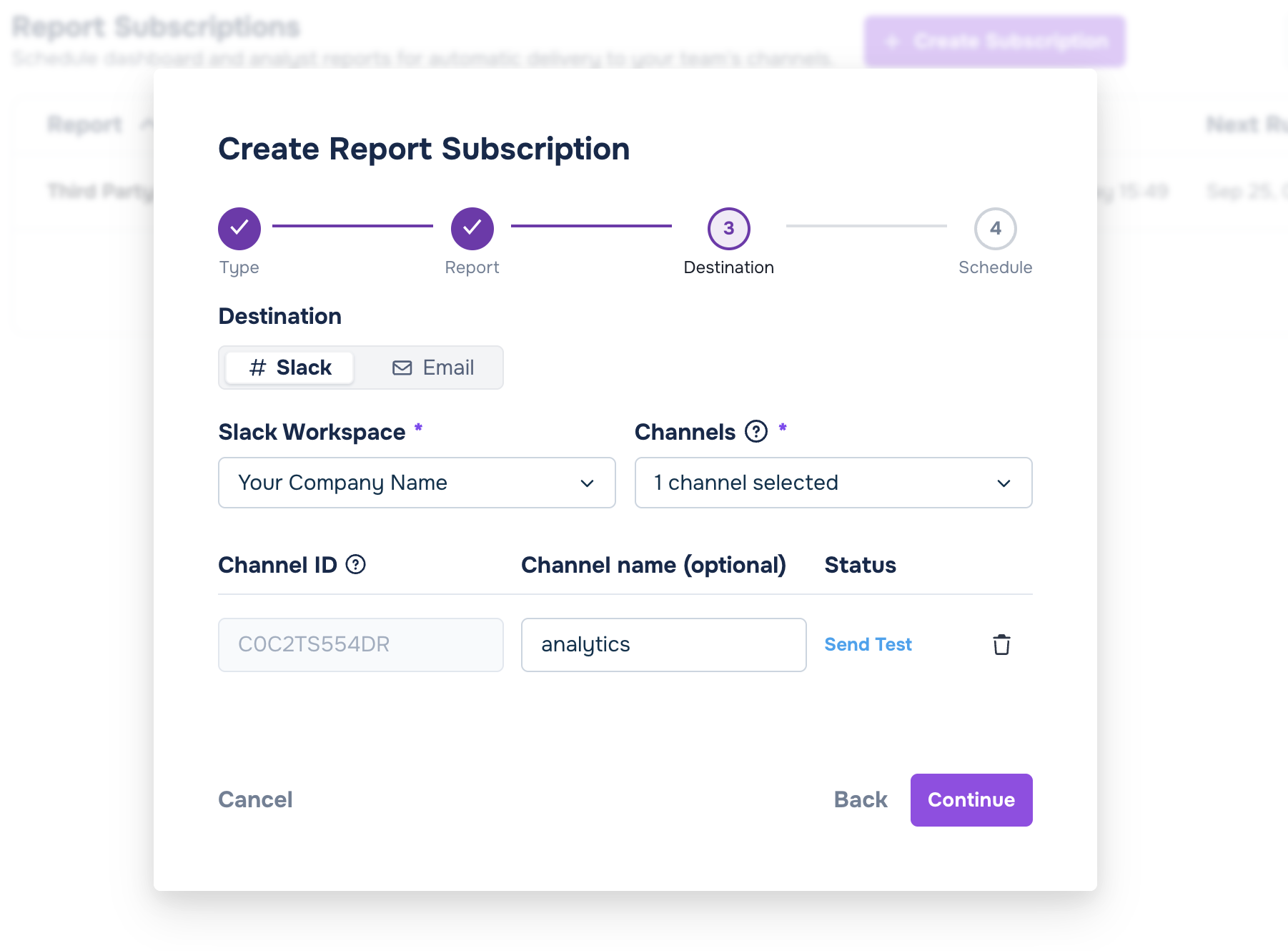
A minus icon beside a channel name means the Cognitive3D app is not in that channel yet. To add a channel that is not in the list, select Add by Channel ID at the bottom of the list. Enter the ID of the channel. To find the ID, open the channel details in Slack. The ID is at the bottom and starts with C.
A missing invite is the most common reason a report does not arrive.
Email delivery sends the report as a PDF attachment.
- Report Recipients lists the members of your organization. Select the people who receive the report, or use Select All and Deselect All.
- Add Custom Email adds an address from outside your organization. Type the address. Press Enter to add it.
Manage subscriptions
The Report Subscriptions page lists every subscription in your organization with its Type, Scope, Destination, Schedule, Next Run, and Status.
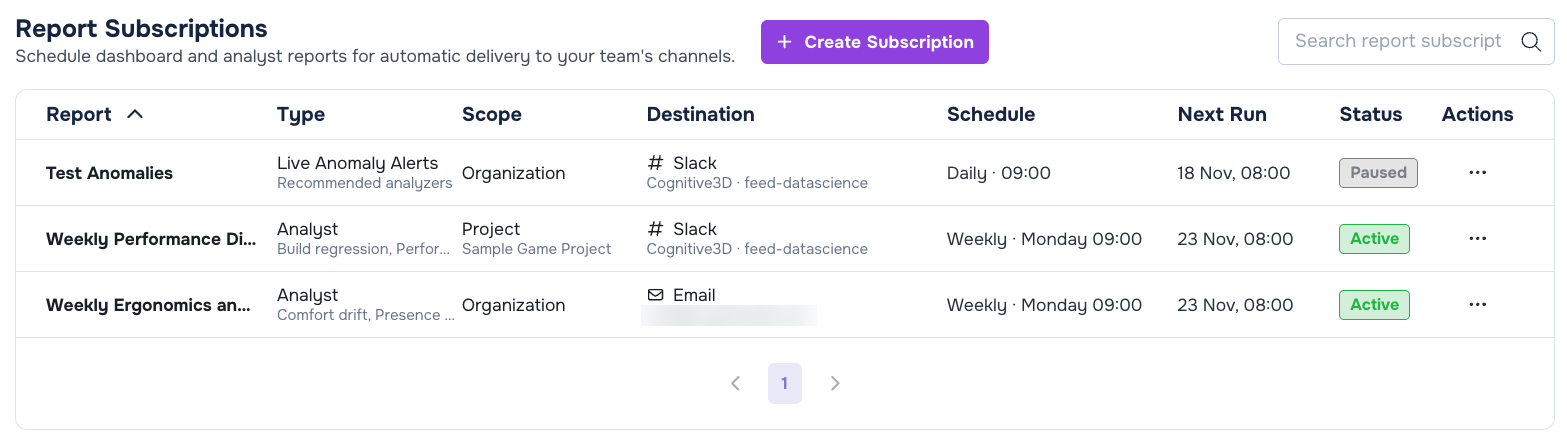
The Type column shows Dashboard, Analyst for a Weekly Digest, or Live Anomaly Alerts. For an Analyst report, it also shows Recommended analyzers or the analyzers you chose. Schedule shows the delivery time in the subscription's timezone, and Next Run shows the next delivery in your local time, so the two can differ. The Status column shows one of these values:
| Status | Meaning |
|---|---|
| Active | The subscription sends on its schedule. |
| Paused | You paused the subscription. It sends nothing until you resume it. |
| Report off | The report is turned off, so the subscription sends nothing. |
| Disabled | Something the subscription depends on is gone, such as a deleted project or dashboard, or a disconnected Slack workspace. Hover over the status to see the reason. |
Press ... in the Actions column to manage a subscription:
- Pause stops delivery and keeps the subscription. Resume starts delivery again.
- Edit Subscription reopens the wizard. Report Type and Scope are locked, so create a new subscription to change either.
- Delete Subscription removes the subscription.
You cannot repair a Disabled subscription. Delete it, then create a new one. Disconnecting the Slack workspace does not disable a subscription that also delivers by email. That subscription keeps delivering by email.
Troubleshooting
A report does not arrive
- Check that the Cognitive3D app is in the Slack channel. Edit the subscription. Press Send Test on the Destination step. If the test fails, send
/invite @Cognitive3Din the channel, then test again. - Check the Status column. A Paused or Disabled subscription sends nothing.
- Allow a few minutes per project for a Weekly Digest that you send with Send Now.
- Expect no message from Live Anomaly Alerts when no finding is new.
The wizard refuses a Live Anomaly Alerts subscription
Each project can have one Live Anomaly Alerts subscription, and a Whole organization subscription covers every project. Select Open it to edit the existing subscription, or delete that subscription before you create another. A paused subscription still counts.
A digest is quiet
A quiet digest means the analyzers have nothing to report for the week. This is a normal result. A digest also has less to report when a project has few sessions. Analyzers leave out editor sessions, and a finding backed by few sessions says that its change is not statistically confirmed yet.
See also
- Organization Settings — connect the Slack workspace that your reports post to.
- Dashboard Builder (Beta) — build a custom dashboard to send as a Dashboard report.
- Build a weekly report — ask an AI assistant for a summary on demand instead of on a schedule.
 If you have a question or any feedback about our documentation please use the Intercom button (purple circle) in the lower right corner of any web page or join our Discord.